



|
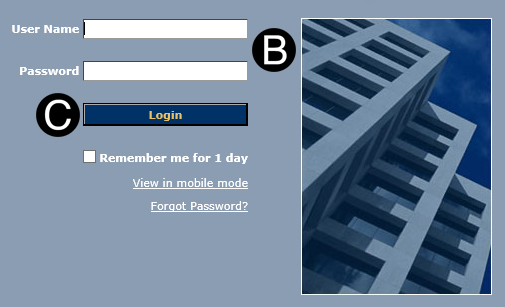
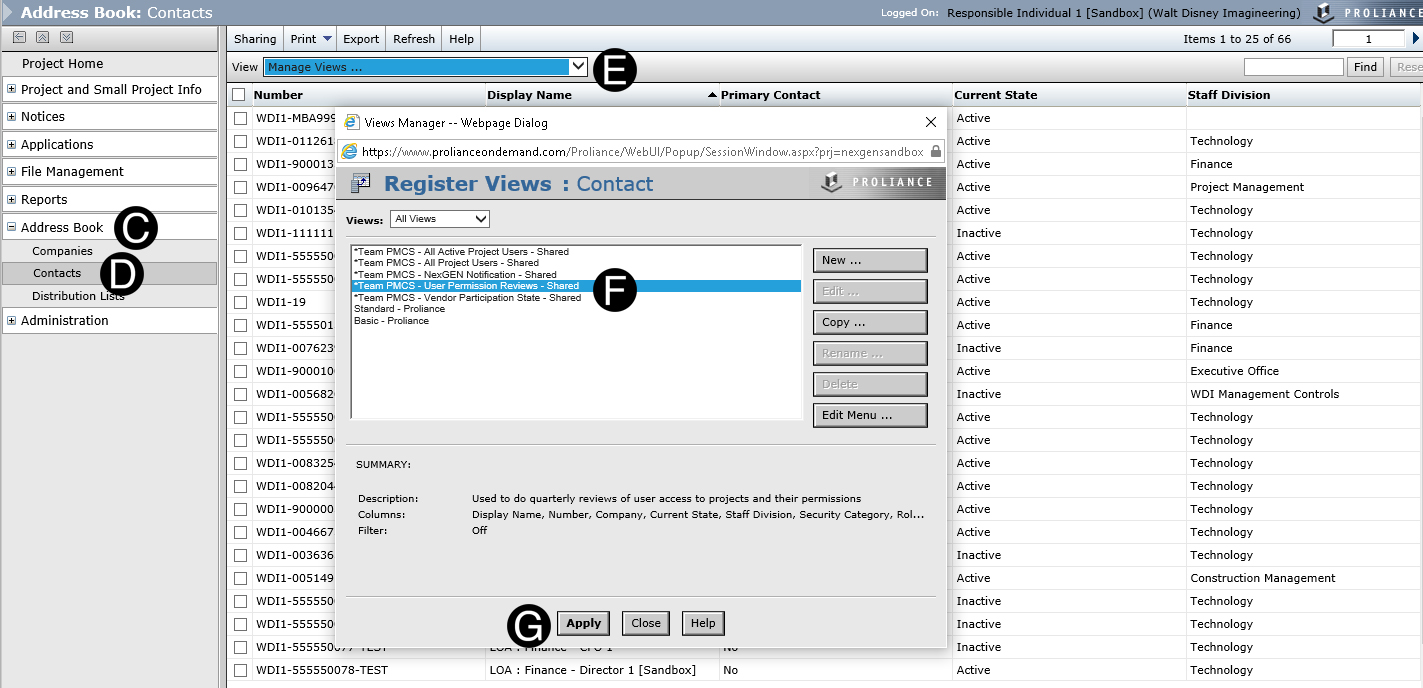
Go to Proliance/PMCS: https://www.prolianceondemand.com
OR Shanghai users https://www.proliance.cn
Type your Proliance/PMCS Credentials (User Name, and Password).
Click Login.




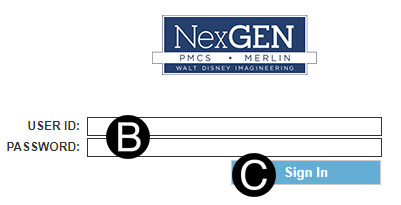
Go to RMM: http://pmcs.wdi.disney.com/rmm/SignIn.aspx
Type your Credentials (User Name, and Password).
Click Sign In.
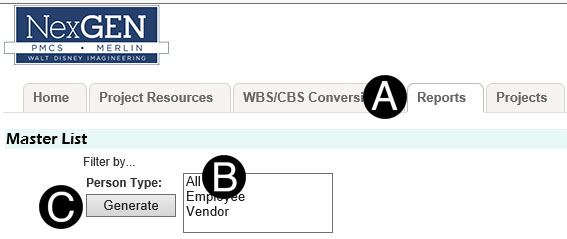
Click on Reports Tab.
Click All.
Click Generate.
Click Open.

Filter Column E and located your ProjectName.
Filter Column A IsRsrcA-is resource (User) active on your project select Y for yes.
Filter Column F Security Category and filter out the (Blanks).
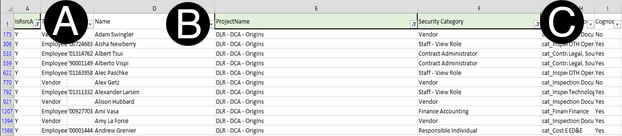
Confirm the information (Name, Security Category and Role Name) from Proliance/PMCS and RMM match
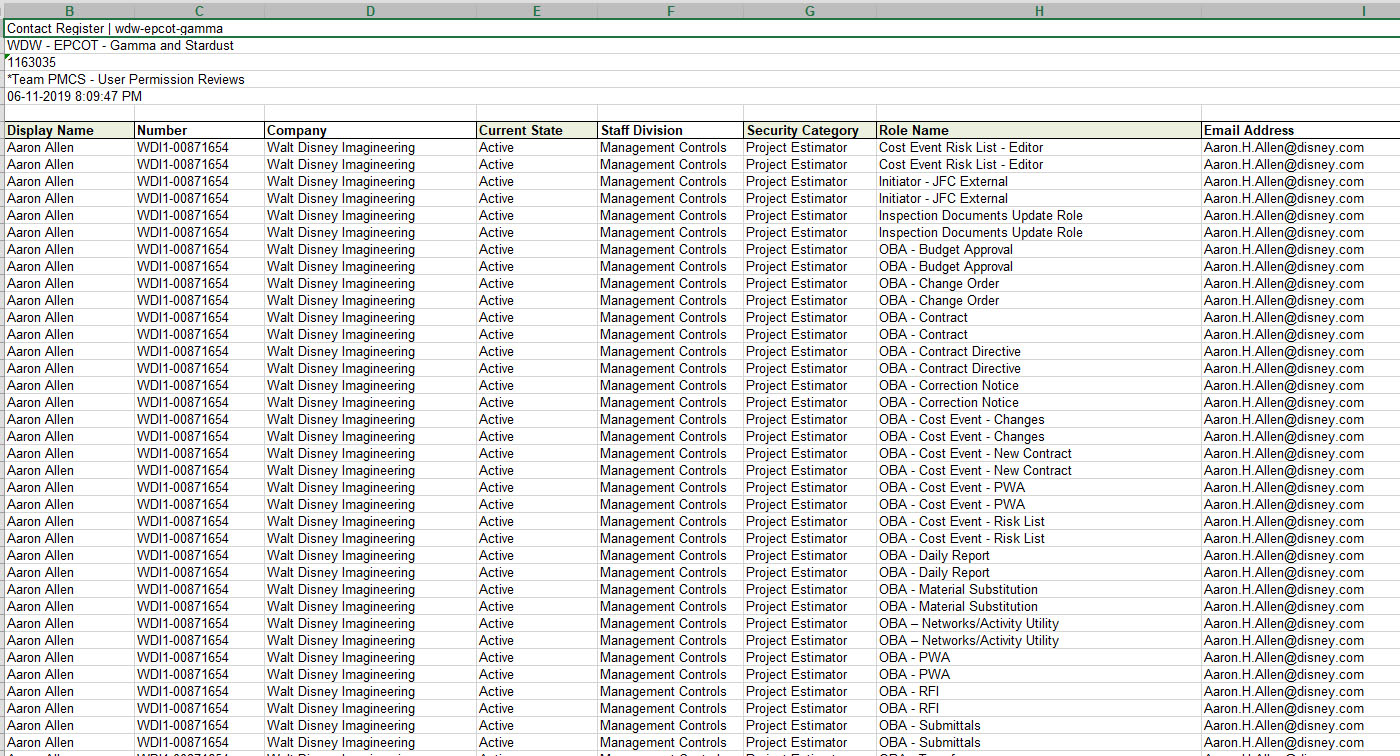
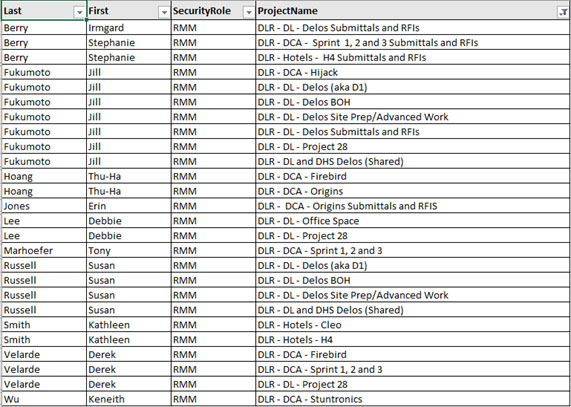
Go to RMM: http://pmcs.wdi.disney.com/rmm/SignIn.aspx
Type your Credentials (User Name, and Password).
Click Sign In.
Go to RMM: http://pmcs.wdi.disney.com/rmm/SignIn.aspx
Type your Credentials (User Name, and Password).
Click Sign In.
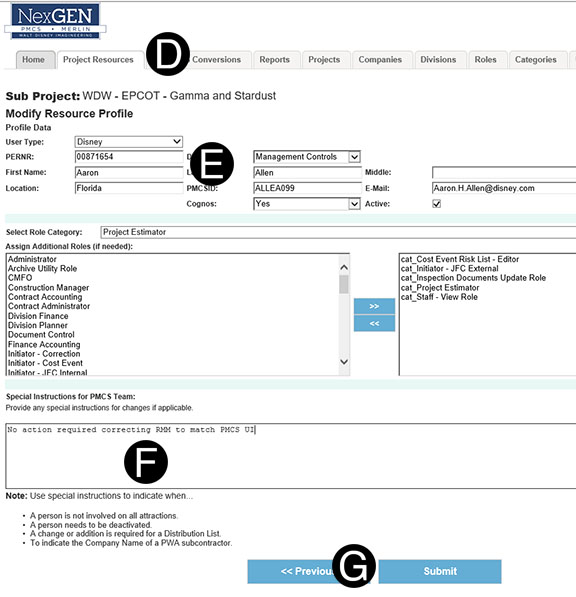
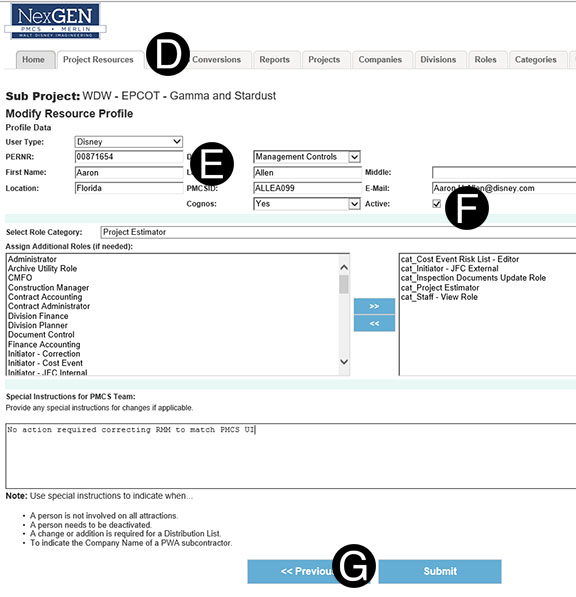
Click to select the Project.
Click to select the User
Un-check the Active box.
Click Submit.
|
 Confirm the Project(s)
that you are the Role Matrix Manager for by reviewing the Role
Matrix Manager Assignments Excel document which is emailed from
the NexGEN Administrators quarterly.
Confirm the Project(s)
that you are the Role Matrix Manager for by reviewing the Role
Matrix Manager Assignments Excel document which is emailed from
the NexGEN Administrators quarterly. Projects
that are Closed will need a final audit completed with the necessary
removal/de-activation of User names who no longer need access.
Projects
that are Closed will need a final audit completed with the necessary
removal/de-activation of User names who no longer need access.