





The Responsible Individual reviews the Settled Change Order by Project Estimator and any attachments.
Once a Change Order is submitted by the Responsible Individual it moves to the Contract Administrator in the Approve state.


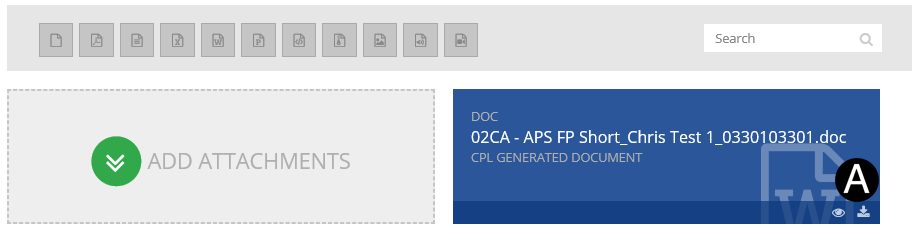
In References and Attachments section Click  download
icon to view the Attached file.
download
icon to view the Attached file.
|

Select Yes or No in Closeout field (depends if this is the final change order or not).
Enter Scheduled Completion from date picker.

|

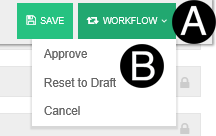
Click Workflow.
Select Approve.
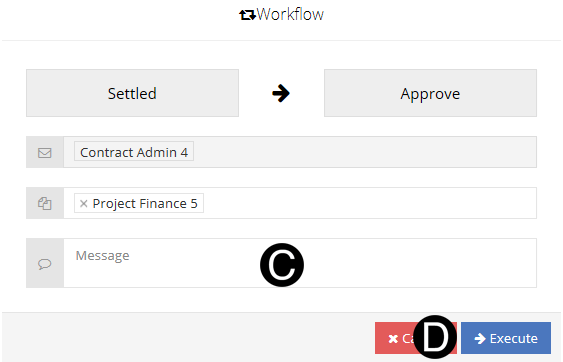
Type a message in the Custom Message field to include in the Email notification (optional).
Click Execute.
 You can Click Open or Save to review
the attachments.
You can Click Open or Save to review
the attachments. If the
Responsible Individual chooses 'Yes' in the 'Closeout' field,
they need to ensure there aren't any pending documents for this
Contract before save.
If the
Responsible Individual chooses 'Yes' in the 'Closeout' field,
they need to ensure there aren't any pending documents for this
Contract before save.