





The Responsible Individual (RI) will receive Email Notification from Vendor if Participating or Contract Administrator if not Participating. RI will finalize the schedule of Values (SOV).
Once a Change Order is submitted by the Responsible Individual it moves to the Fully Executed Invoicing Authorized state.


|
Right click SOV Code (optional).
Click SOV Breakout.

Click Create Row button.
Enter unique SOV Code.
Enter unique SOV Description.
Update Settled Values for existing and added Rows.
Click Confirm.
|

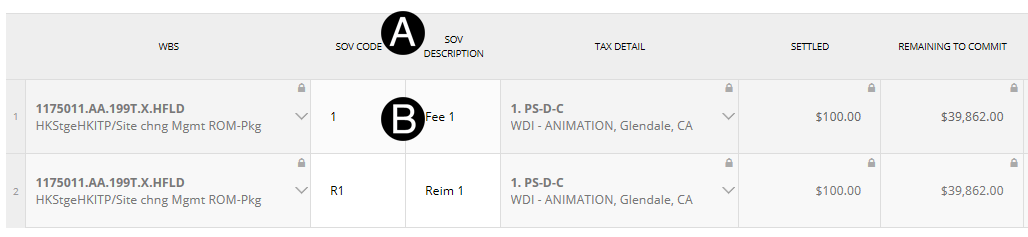
Verify SOV Code and Description.
Edit SOV Lines if needed.

A. Click 

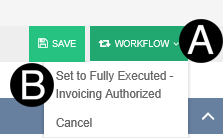
Click Workflow.
Select Set to Fully Executed-Invoicing Authorized.
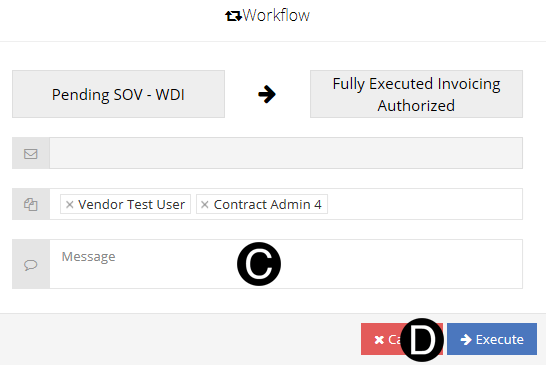
Type a message in the Message field to include in the Email notification (optional).
Click Execute.
 If
you agree with SOV lines proceed to Step 4 Workflow.
If
you agree with SOV lines proceed to Step 4 Workflow.