


F.8.2.3 Approve: Edit Document Complete All Fields and Attach Additional Document as Needed and Obtain Signatures


Description

The Contract Administrator reviews the Lean Change Order without CD to confirm the settled value is accurate based on scope already awarded and determines if it is the Closeout Change Order.

Please click here to see the DocuSign Tagging List.


Please change the font color to White for all DocuSign Tags in your document.


Formatting in the word/pdf doc. Be careful as too much formatting in the word/pdf can offset the placement of the tag once it routes as DocuSign envelope.


For **vendor_signature**  and **wdi_signature** give several spaces as the DocuSign e-signature takes up to 3 to 4 lines/rows.


Outcomes

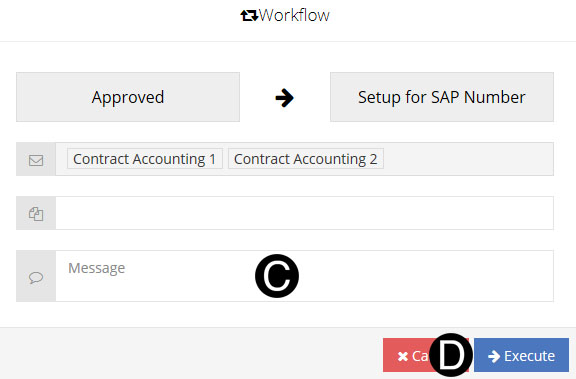
Once a Lean Change Order without CD is submitted by the Contract Administrator it is Workflow to the Contract Accounting for SAP Setup.

 

Detailed Steps


Step 1: Log in to NexGEN.


Contract Administrator can edit Document Title, Purchase Group, Plant, Material Group, Delivery Address, Change Order Type, Responsible Individual/Studio and Scope within this state.


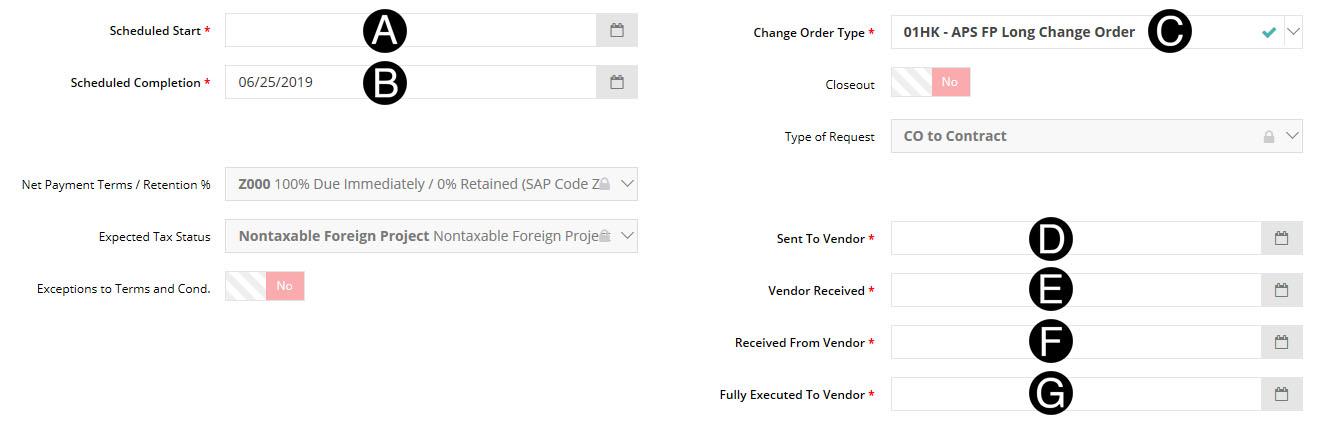
Step 2: Complete all required fields on the Lean Change Order without CD .

  1. Select Scheduled Start from date picker.

  2. Select/Verify Scheduled Completion from the Date Picker.

  3. Select/Verify Change Order Type.

  4. Select Sent to Vendor from date picker

  5. Select Vendor Received from date picker.

  6. Select Received from Vendor from date picker.

  7. Select Fully Executed To Vendor from date picker.
If you have not yet completed your actions you can Save without submitting and complete at a later time.


If your Contract participates in DocuSign Authority Click Here for correct process steps.


If No Signature Required is selected under Type of Request the document will bypass the DocuSign process in NexGEN.


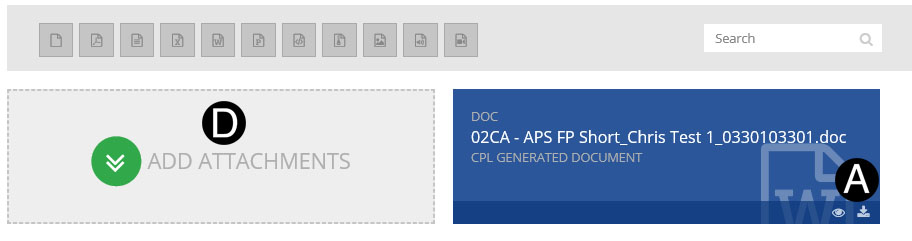
Step 3: Download Lean Change Order without CD.(If Applicable)

  1. In References / Attachments section Click download_icon.png download icon to download the Change Order file.

  2. Review Lean Change Order without CD file and make any changes as needed.

  3. Save Lean Change Order without CD file as PDF.

  4. Click Add Attachments and attach PDF.

The attachments will not be visible by default to the Vendor, you will need to unlock the eye icon on the attachment. Visible to Vendor Attachement_Visiable.png  or Not Visible.


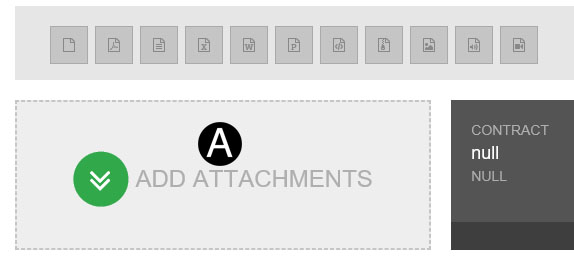
Step 4: Attach the Fully Executed Signed Document.

  1. Click ADD ATTACHMENTS.

  2. Select the file to attach (Holding down Ctrl to select multiple attachments).

  3. Click Open to attach the document.

  4. Delete old Change Order file by clicking (trashcan icon)

The attachments will not be visible by default to the Vendor.  If they need to be, you will need to unlock the eye icon on the attachment. Visible to Vendor or Not Visible.


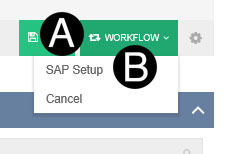
Step 3: Workflow for Change Order Lean without CD Number to be created in SAP.

  1. Click Workflow.

  2. Select SAP Setup.


  1. Type a message in the Message field to include in the Email notification (optional).

  2. Click Execute.


If Contract Vendor is in the Approved Countries for DocuSign, and the Contract type is either California or Florida DocuSign, will be part of the process.  


Step 2: Verify DocuSign Authority

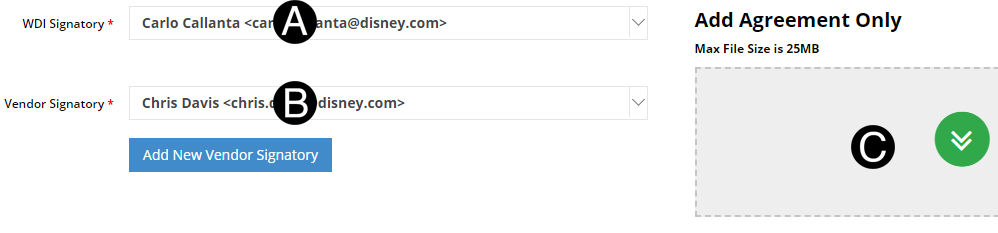
  1. Verify or update WDI Signatory.

  2. Verify or update Vendor Signatory.

  3. Add Agreement.


Step 3: Send to Vendor.

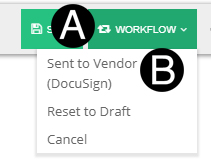
  1. Click Workflow.

  2. Select Sent to Vendor (DocuSign).


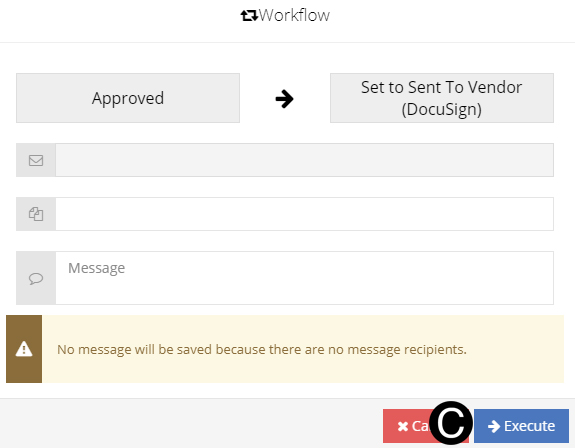
  1. Click Execute.


Vendor and WDI DocuSign authorized will receive the DocuSign document.  Once signed the Change Order will move to the following states automatically:

  • If SOV is complete Change Order will move to Fully Executed State
  • if SOV is not Complete Change Order will move to Pending SOV Vendor/WDI accordingly.