F.6.12 Pending SOV Vendor: Modify SOV Details per Contract Specified
Days or Concur by Just Workflowing
Description
The Vendor receives a notification via
Email. The Vendor reviews and modifies their
Schedule of Values (SOV) and returns it to the Responsible
Individual (RI).
Outcomes
NexGEN notifies the RI
to review and approve the SOV.








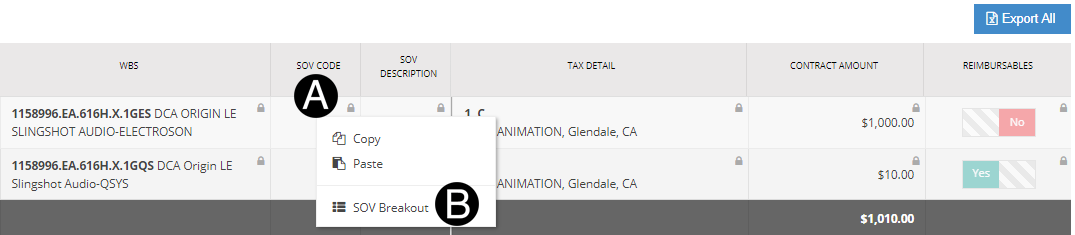


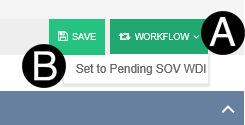
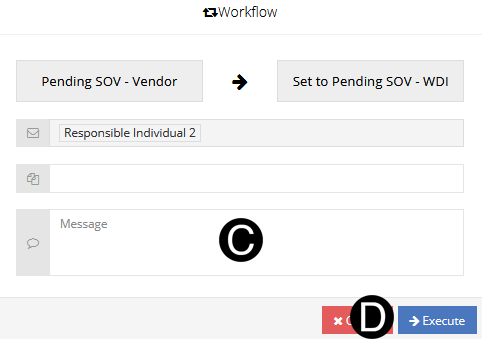
 If the SOV
line items get modified and the Fee and Reimbursable values do
not tie to the original contract value, you will receive an error.
If the SOV
line items get modified and the Fee and Reimbursable values do
not tie to the original contract value, you will receive an error. New Work
Breakdown Structure (WBS) codes can't be added. You will receive
an error if you try to do so.
New Work
Breakdown Structure (WBS) codes can't be added. You will receive
an error if you try to do so.