





Project Finance reviews invoice for accuracy of invoiced amount broken out by SOV and ensures that all necessary backup is attached.
Once a Contract Payment is Approved, it is Workflowed from the Pending Approval to Pending Division Approval state if Studio Finance needs to Review. or PM Review State if no Studio Finance Review is needed. If Contract is Non-Domestic LOA State Workflow can be an option.
|

Click download icon and review the Vendor Invoice.
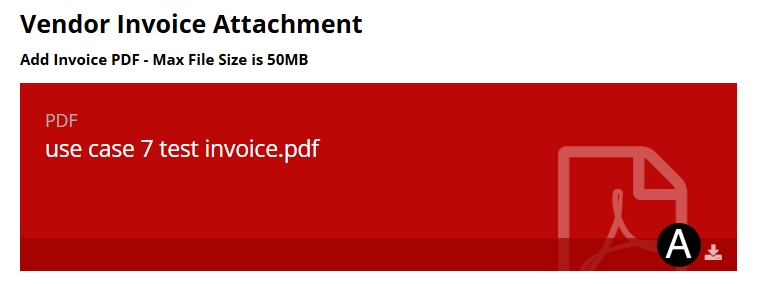

In References /Attachments section
click the  download icon to download the Invoice
file.
download icon to download the Invoice
file.
Review Invoice file.
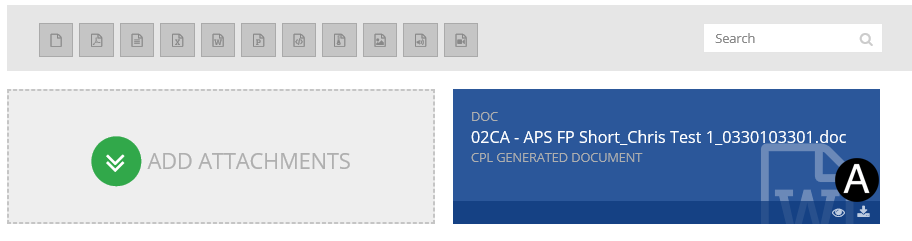

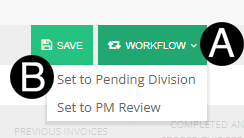
Click Sub Document Header Workflow drop-down list.
Select Set to Pending Division.
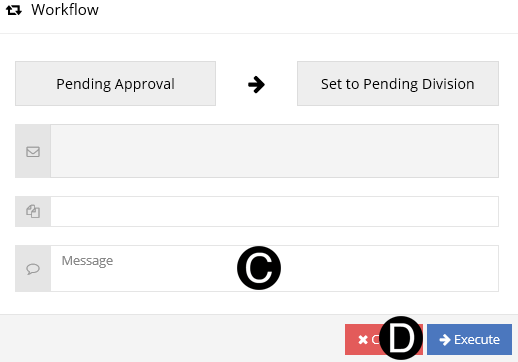
Type a message in the Message field to include in the Email notification (optional).
Click Execute.
Click Main Document Header Workflow drop-down list.
Click Set to PM Review.
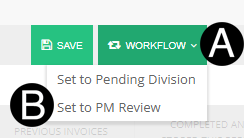
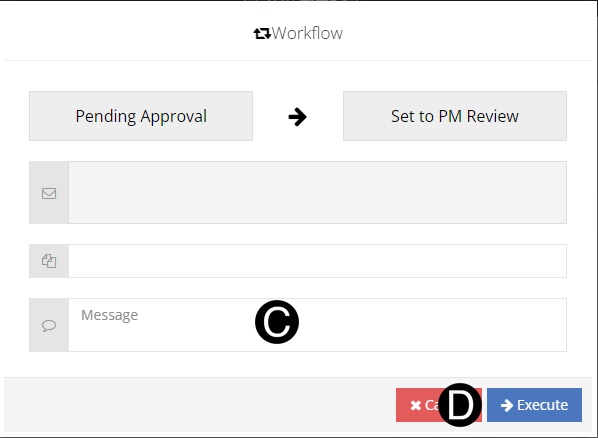
Type a message in the Message field to include in the Email notification (optional).
Click Execute.
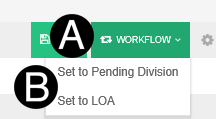
Click Sub Document Header Workflow drop-down list.
Select Set to LOA.
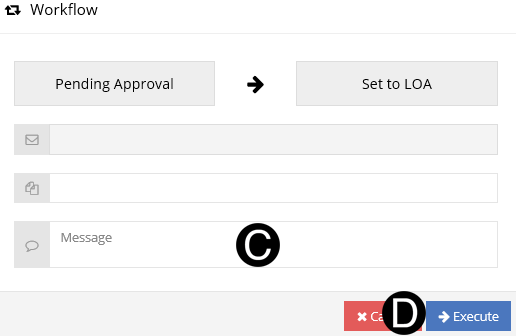
Type a message in the Message field to include in the Email notification (optional).
Click Execute.
 Click to see the Portfolio Procurement
Approval Matrix. Or from Main Document Header click LOA Approvals.
Click to see the Portfolio Procurement
Approval Matrix. Or from Main Document Header click LOA Approvals.