

D.7a.1 Draft: Enter Data

Ability for Finance or Estimator to create a Budget Transfer to re-allocate Budget within the project that impacts Cost Reporting.
 Budget
Transfers can only be used in a single NexGEN project (could be one
or many subs)
Budget
Transfers can only be used in a single NexGEN project (could be one
or many subs)
 You
can only perform one type of transfer (WBS to WBS, WBS to Contingency,
Contingency to WBS, Contingency to Contingency) per Budget Transfer.
You
can only perform one type of transfer (WBS to WBS, WBS to Contingency,
Contingency to WBS, Contingency to Contingency) per Budget Transfer.
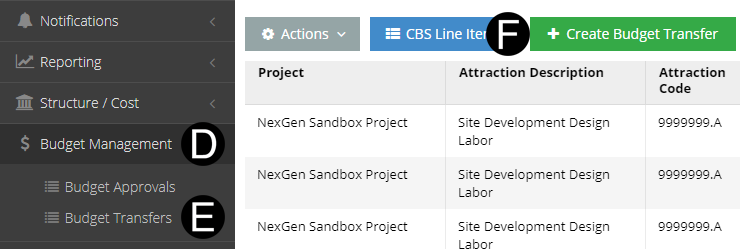
Select Budget Management.
Click Budget Transfers.
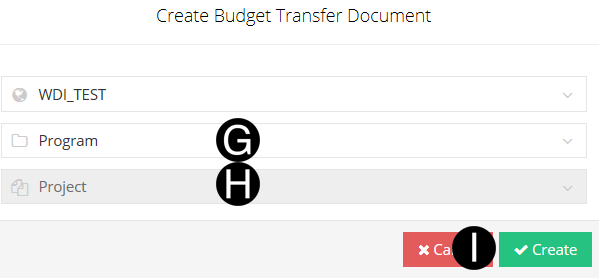

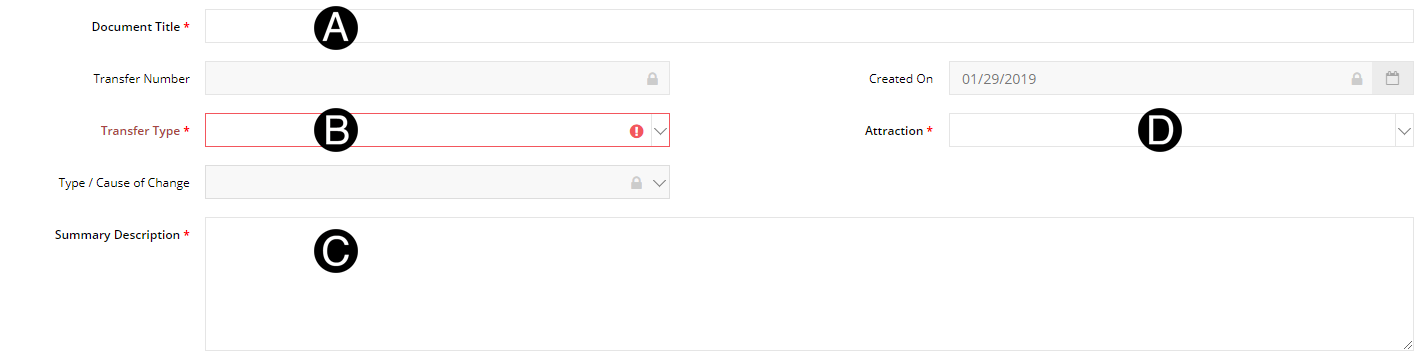
Type a Summary Description.
Select an Attraction.

Type a Description in the Line Item (optional).
Select WBS from the list.
Type a Transfer Amount in the field.
Type any Transfer Notes in the field (optional).
There
is a Bulk Paste option available to upload multiply lines of details
click here for Bulk Paste Option.
You
must select only the Bulk upload option or the + Create Row to add
Manually.

When
entering the Transfer Amount, you must enter both the From Line Item
Detail and To Line Item Detail rows and require them to net to zero.

There
is a Bulk Paste option available to upload multiply lines of details
click here for Bulk Past Option.
You
must select the Bulk upload option or the + Create Row to add Manually.
You can not use both.
Type a Description in the Line Item (optional).
Select WBS from the list.
Type a Transfer Amount in the field.
Type any Transfer Notes in the field (optional).


A. Click
 .
.
If
you have not yet completed the Budget Transfer, you can 'Save' without
submitting and complete the form at a later time.
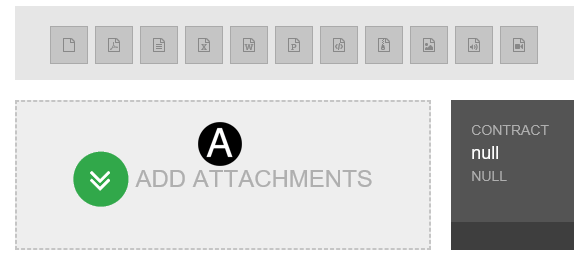
A. Click Add Attachments.
B. Select the file to attach (Holding down Ctrl to select multiple attachments).
C. Click Open to attach the document.

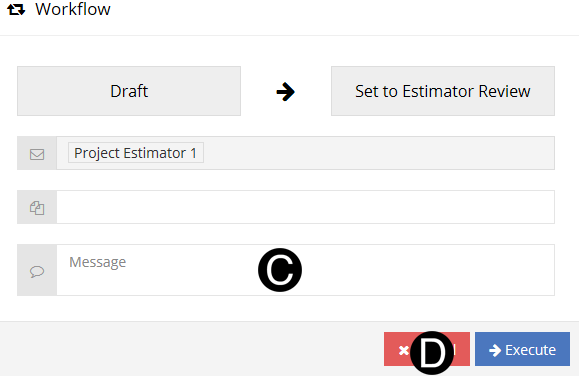
A. Click Workflow
B. Select Set to Estimator Review from the list.
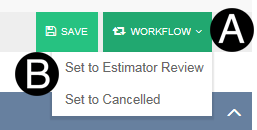
If
Estimator created the Budget Transfer, Step 7 choice for workflow
will be Set to Finance Review.
Click here for Screenshots and Steps
C. Type a message in the Message field to include in the Email notification (optional).
D. Click Execute.