





Studio Finance or Project Finance creates a new Net Zero to reallocate the authorized funds between cost codes within one authorization as long as the total value nets to zero dollars.
PWA Net Zero Document is approved.
|

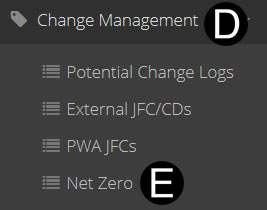
Click Change Management on Navigation Pane.
Click Net Zero.
Click  .
.
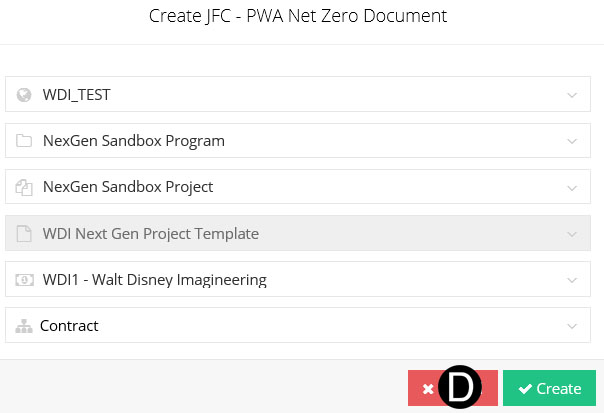
Select or verify Project Information and Click Create.

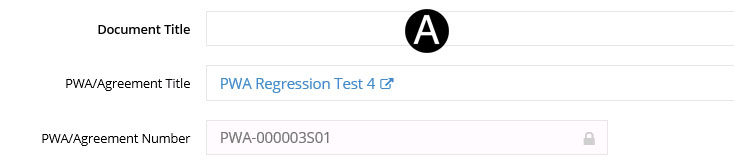
Enter Document Title in the field.
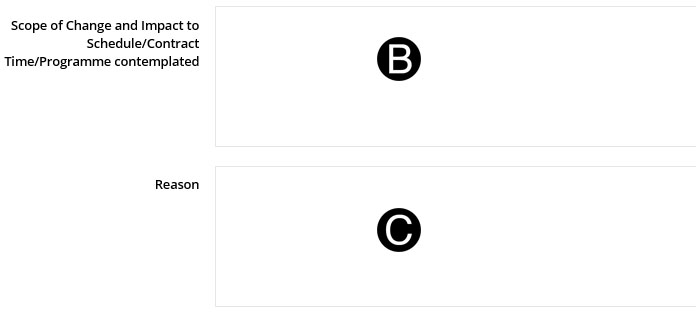
Enter Scope of Change in the field.
Enter Reason for change in the field.
To add a row in SOV table, click on .
.
Select WBS from list. When a WBS is selected it will filter the Network Activity based on the selected WBS.
Select Network/Activity (Optional).
Select a Cost Center from the list. (Optional) If Cost Center is selected Labor Rate will auto populate per the Cost Center current standard Labor Rate.
Enter Hours and Labor Rate if there is a Cost Center selected (This will override the Cost Center Labor Rate).
Enter OE Amount.

|

Click  .
.
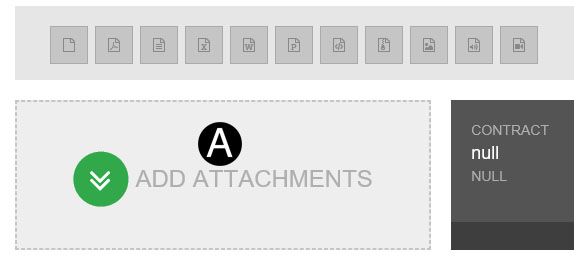
Click ADD ATTACHMENTS.
Select the file to attach (Holding down Ctrl to select multiple attachments).
Click Open to attach the document.
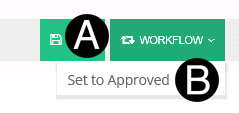
Click Workflow.
Select Set to Approved.
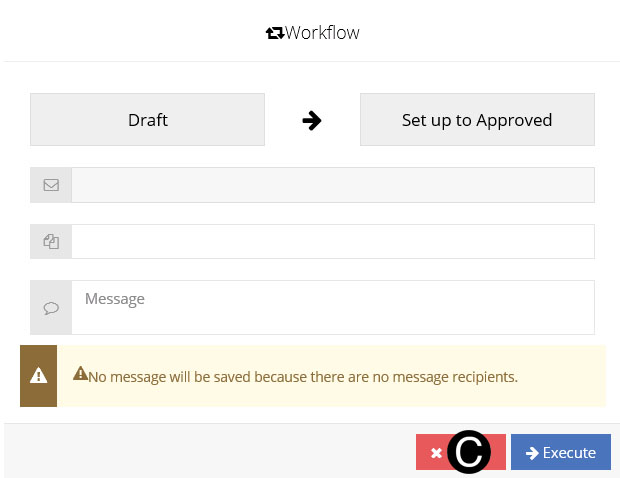
Click Execute.
 Net Zero can not cross sub-projects in
a PWA. If this is required a PWA-R using the JFC process
is required.
Net Zero can not cross sub-projects in
a PWA. If this is required a PWA-R using the JFC process
is required. The document must be saved first before supporting
Documents can be attached.
The document must be saved first before supporting
Documents can be attached.