





The Initiator can create a Draft which will include all of the needed arrangements for the Travel Authorization. The Initiator can also create a Travel Authorization for Vendors if needed.
Once the Travel Authorization is initiated and submitted, it is workflowed to the Studio Lead if it contains no exceptions. If the Travel Authorization contains exceptions it will workflowed to the Policy Exception Approver.
|
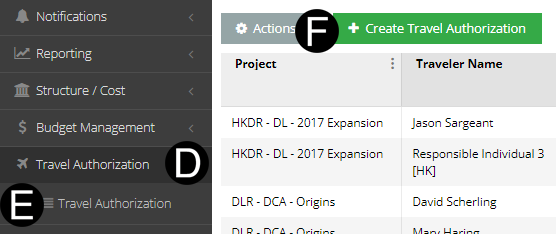
Select Travel Authorization.
Click Travel Authorization.
Click Create Travel Authorization.
|
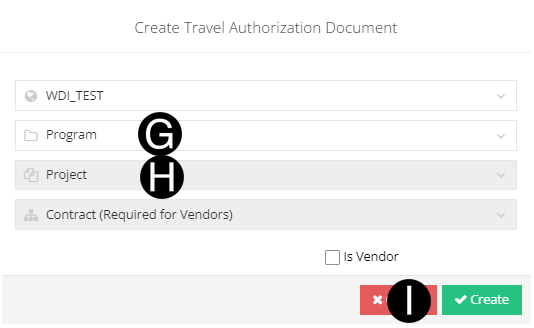
Select Program.
Select Project.
Click Create.
 .
.


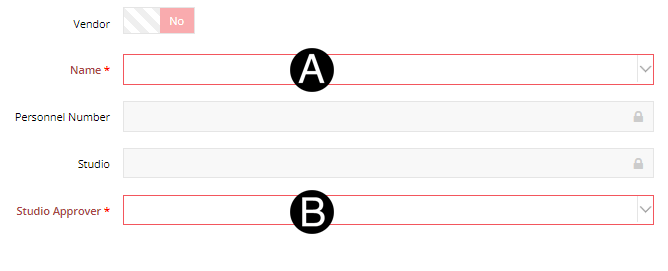
Select Name from drop down.
Select Studio Approver from drop down.

Enter Origin City Code.
Enter Destination City Code.
Select Departure Date from date picker.
Select Return Date from date picker.
Select Attraction from List.
Toggle all items that apply.
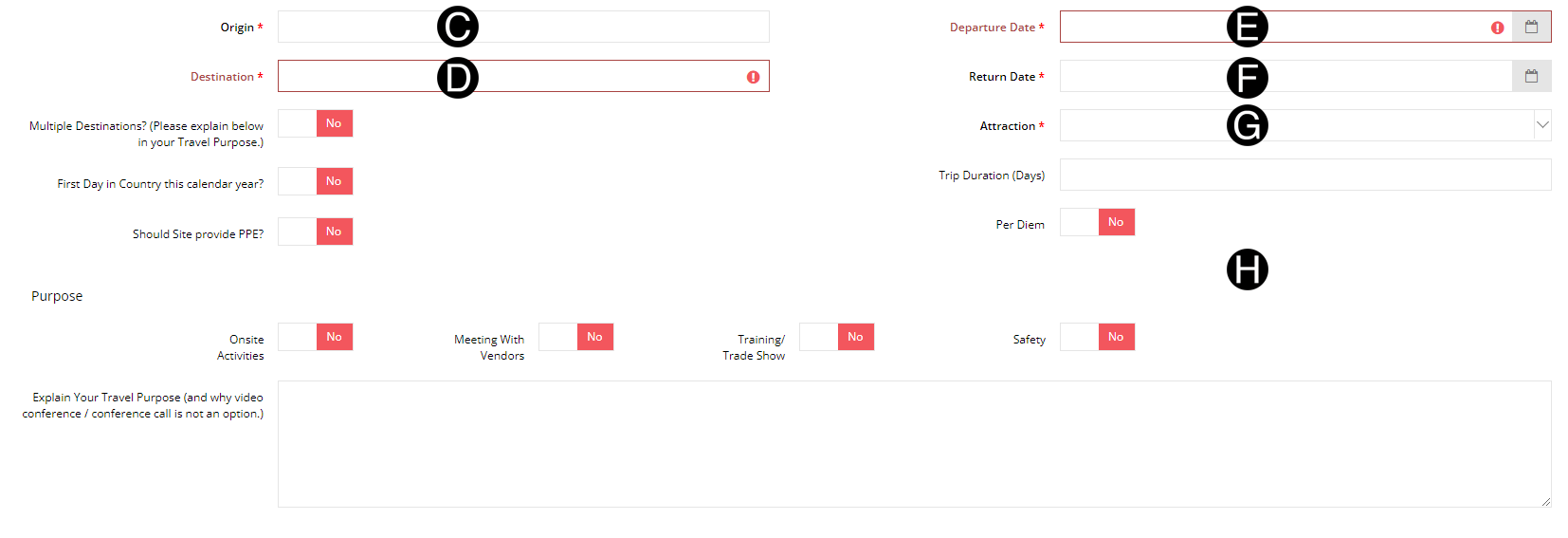

Toggle all Arrangement Requirements that apply.
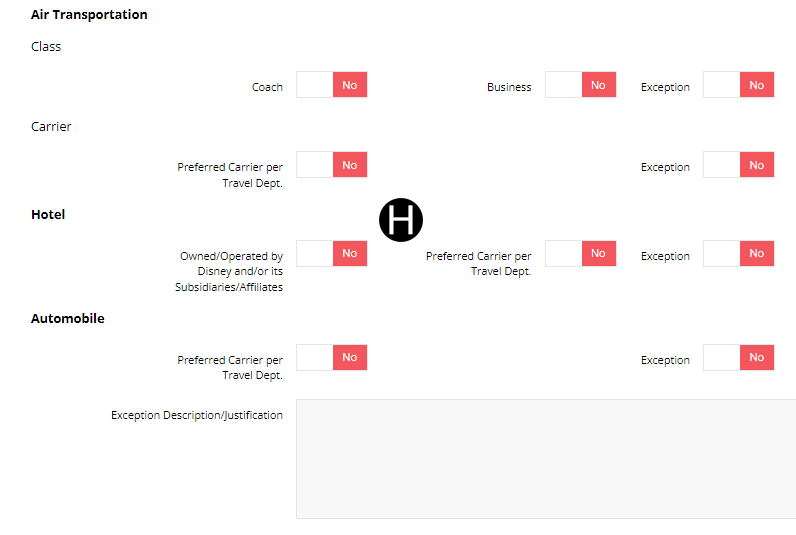
|

Select WBS/Network/Order from drop down for each row that applies to the Travel Authorization.
Enter Quantity were required.
Enter Rate were required.
Enter Estimated Cost were required.
Enter Notes and Comments if needed.
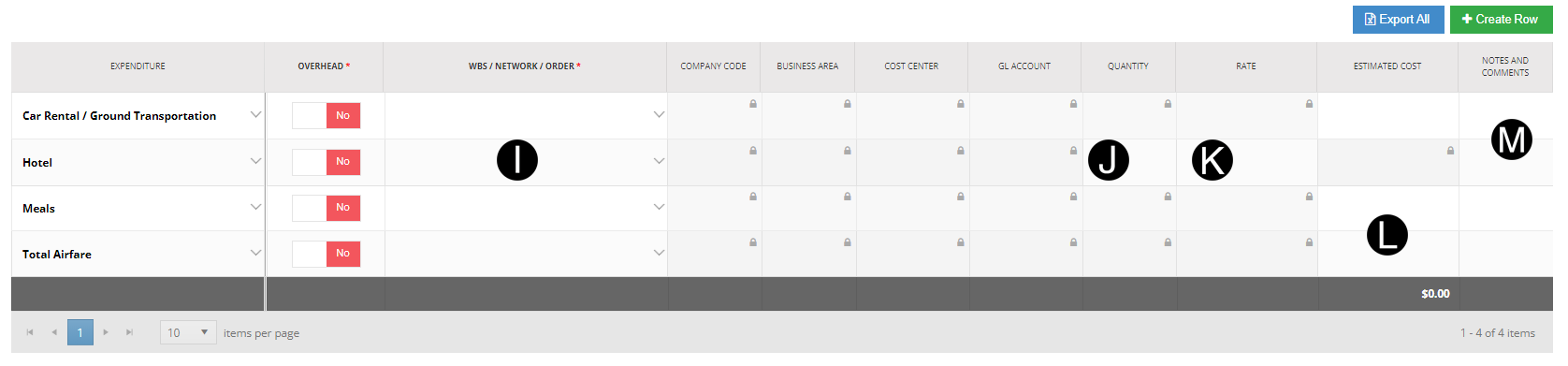
|

Click  .
.

Click ADD ATTACHMENTS.
Select the file to attach (Holding down Ctrl to select multiple attachments).
Click Open to attach the document.

Click Workflow drop-down list.
Select Set to Studio Review.
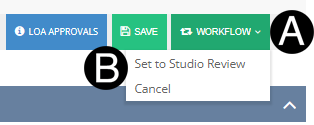
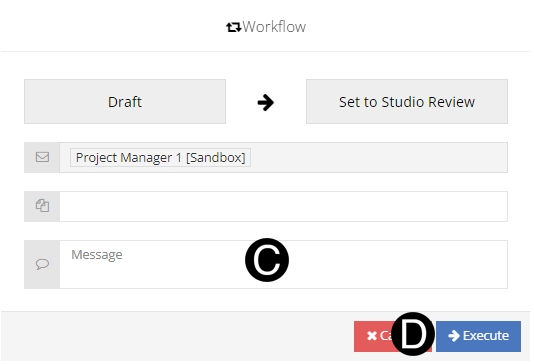
Type a message in the Message field to include in the Email notification (optional).
Click Execute.
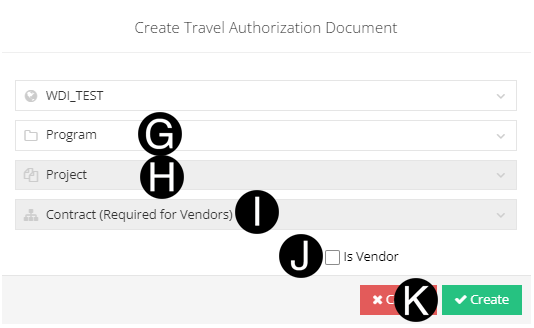
Select Program.
Select Project.
Select Contract.
Check box for Is Vendor.
Click Create.
 .
.
|
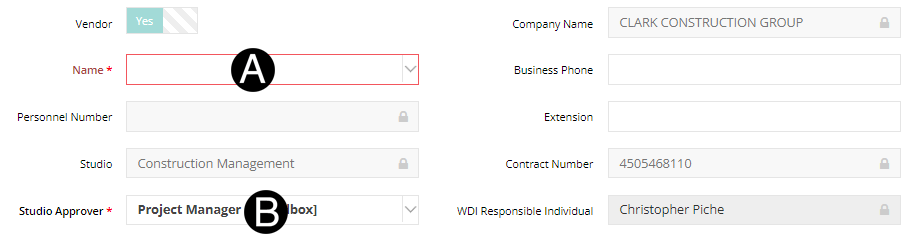
Select Name from drop down.
Select Studio Approver from drop down.
Enter Origin City Code.
Enter Destination City Code.
Select Departure Date from date picker.
Select Return Date from date picker.
Toggle all items that apply.
Toggle all Arrangement Requirements that apply.
|
Select WBS/Network/Order from drop down for each row that applies to the Travel Authorization.
Enter Quantity were required.
Enter Rate were required.
Enter Estimated Cost were required.
Enter Notes and Comments if needed.
|
Click .
Click ADD ATTACHMENTS.
Select the file to attach (Holding down Ctrl to select multiple attachments).
Click Open to attach the document.
Click Workflow drop-down list.
Select Set to Studio Review.
Type a message in the Message field to include in the Email notification (optional).
Click Execute.
 If you are an Initiator (
 If
this is Travel Authorization Request for a Vendor
If
this is Travel Authorization Request for a Vendor  If
If