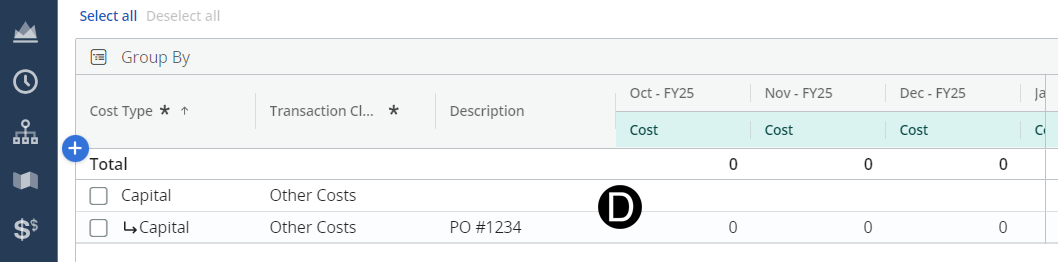



To capture all costs related to the labor side of a project, Staffing Plan Managers will need to enter forecasted costs for travel, relocation, and consultant labor. If the staffing strategy is uncertain, forecasted costs can be represented as OE until the strategy is finalized.
 Actuals will not settle to
a detailed row on a cost plan. They will aggregate at the header row.
Consult the “Detailed Transaction View” tab to view specific actuals.
Actuals will not settle to
a detailed row on a cost plan. They will aggregate at the header row.
Consult the “Detailed Transaction View” tab to view specific actuals.
Attention to the time scale
you are looking at as you navigate between Clarity pages.
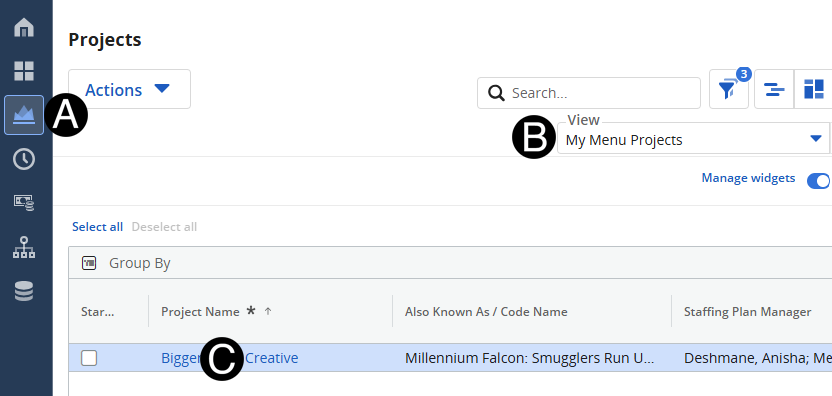
Click on Project icon.
Select My Menu Projects from the View drop-down list.
Click to open project from the list.
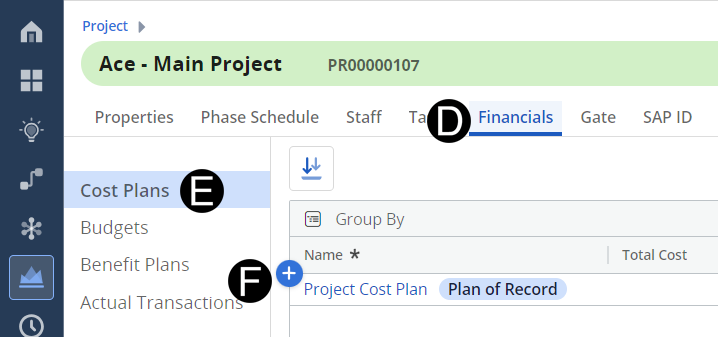
 Change your Fiscal Period
for easier navigation.
Change your Fiscal Period
for easier navigation.
Use
detailed rows to more specifically define forecasted costs.
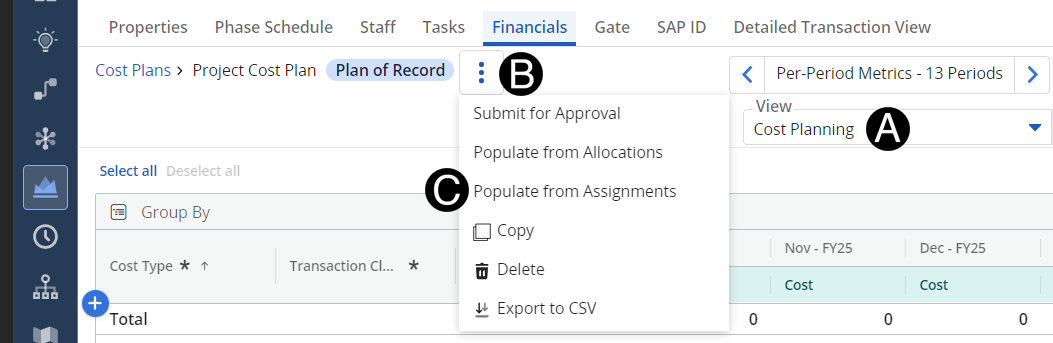
Change View to Cost Planing.
Click the three vertical dots..
Click Populate from Assignments.
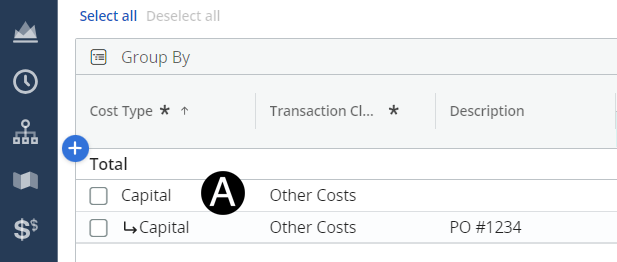
Hover over the row with the expense type you want to add. Right Click and Select Create Details Row.
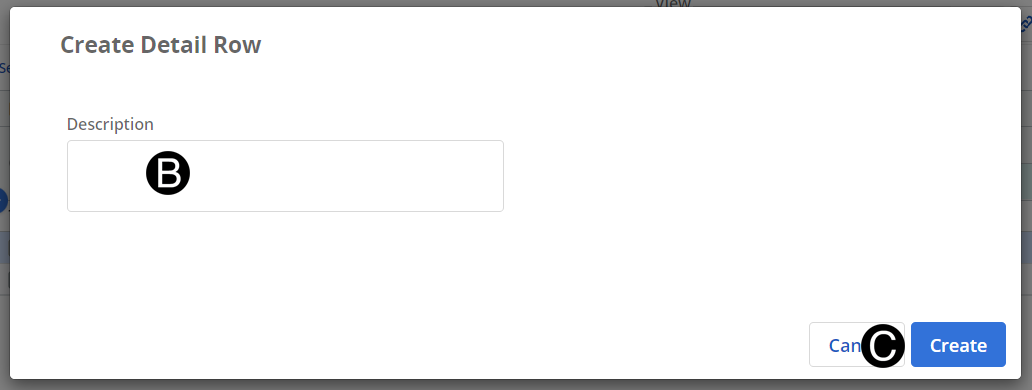
Enter a Description.
Click Create.
Enter Forecasts (Appropriate period).