





As the project progresses through its life cycle, the Scheduler and/or Scheduler Manager can update the project phase schedule to workflow to the Project Manager for approval and publishing.
|
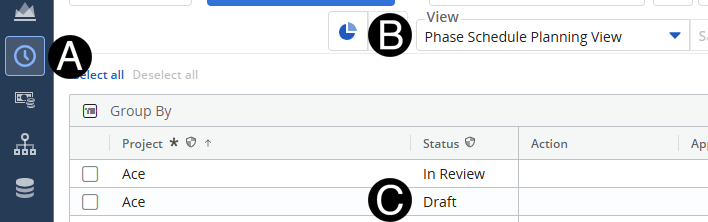
Click Phase Schedule icon.
Select Phase Schedule Planning from the View drop-down list.
Set Status to Draft.
|
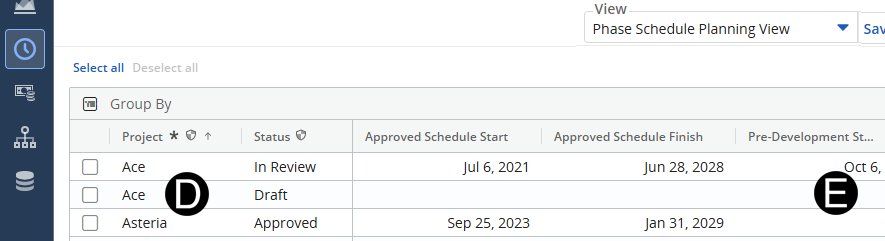
Enter data in to phases that are appropriate based on the details known of the project using the scroll bar at bottom to access all phases.
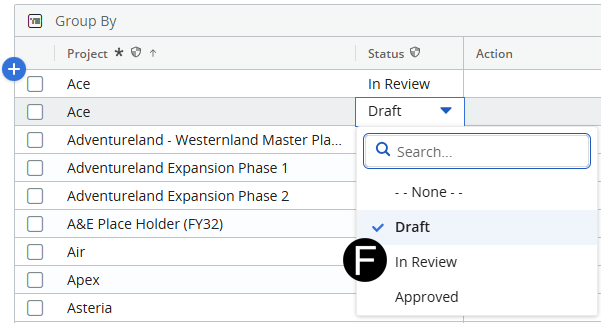
Select In Review from drop-down list in Status field.
 Warning
– There must be a “grouping” created by the Global Creative Strategy
team for the schedule to be shown on all projects.
Warning
– There must be a “grouping” created by the Global Creative Strategy
team for the schedule to be shown on all projects. 