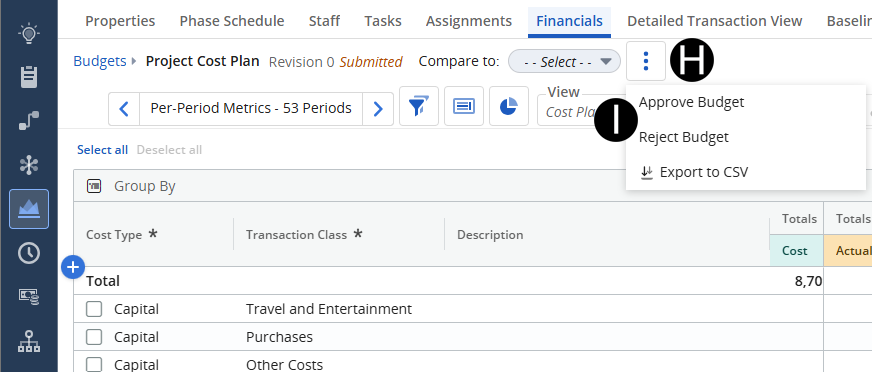



As the PM of the project, you have the authority on whether to approve the cost plan as submitted to you by the finance person on the project. Review the breakdown of costs and signal approval or rejection.
 Once
a cost plan is approved, it will be shown as a budget.
Once
a cost plan is approved, it will be shown as a budget.
Denote
which budget is the approved budget.
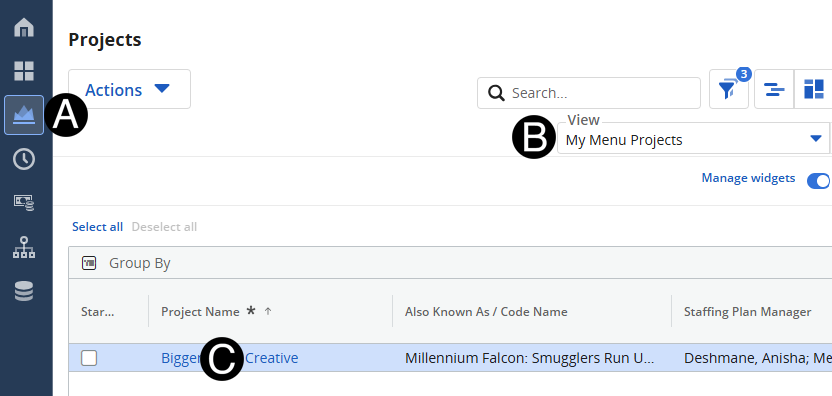
Click on Project icon.
Select My Menu Projects from the View drop-down list.
Click to open project from the list.
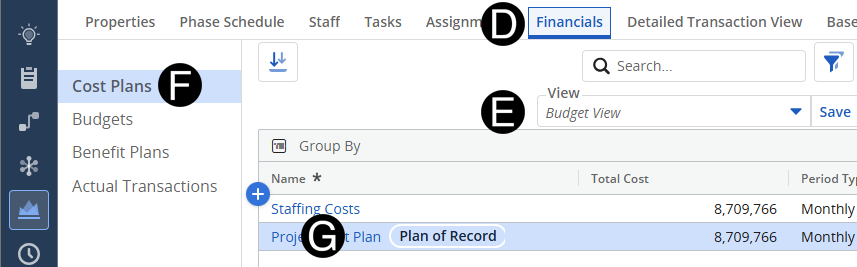
Select the Project Cost Plan for approval.
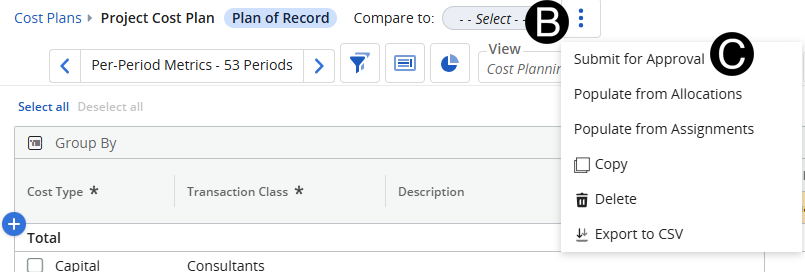
Click the three vertical dots.
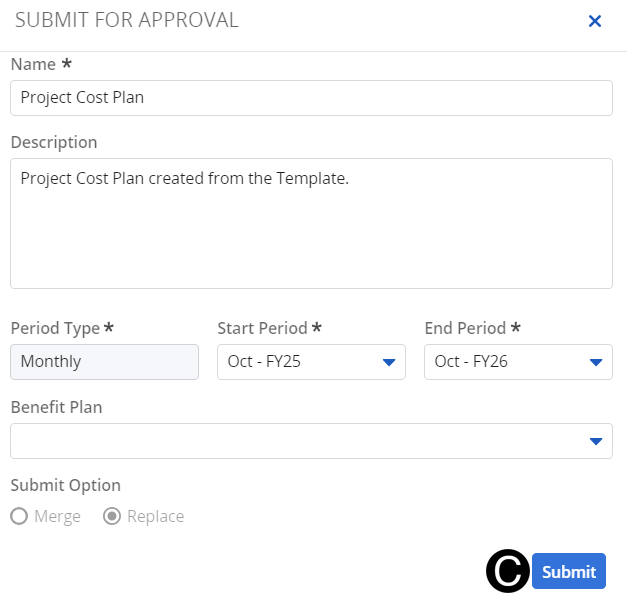
Click Submit for Approval.
Click Submit.
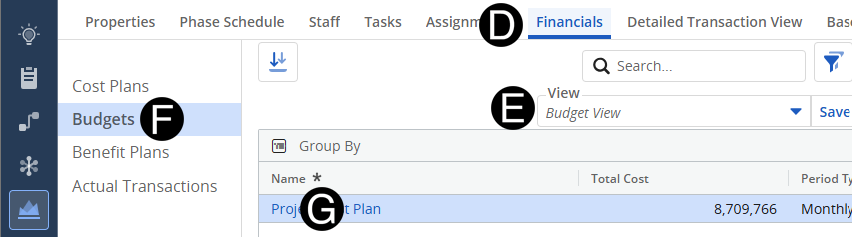
Verify you are on the Financials Tab.
Click Budgets.
Click the Cost Plan to Approve.
Click the three vertical dots.
Click on Approve Budget or Reject Budget.
If
the Submitted Cost Plan is Approved select the Approve
Budget.
If
the Submitted Cost Plan is Rejected select the Reject
Budget.