

Tech Studio Learning Support provides just-in-time support for users of many tools and apps within Tech Studio.
This is accomplished by:
Linking Users directly to Learning Support.
Providing a blend of Screenshots and process flowcharts.
Offering detailed, step-by-step explanations of how to complete tasks.
The Learning Support interface contains three primary components:
Global Navigation
Content Area links are click able and will navigate to tasks and systems.
Links Controls and Menu Planning systems
Links for Business Technology and Data Program.
Quick Links to Resources that can assist within the different systems.
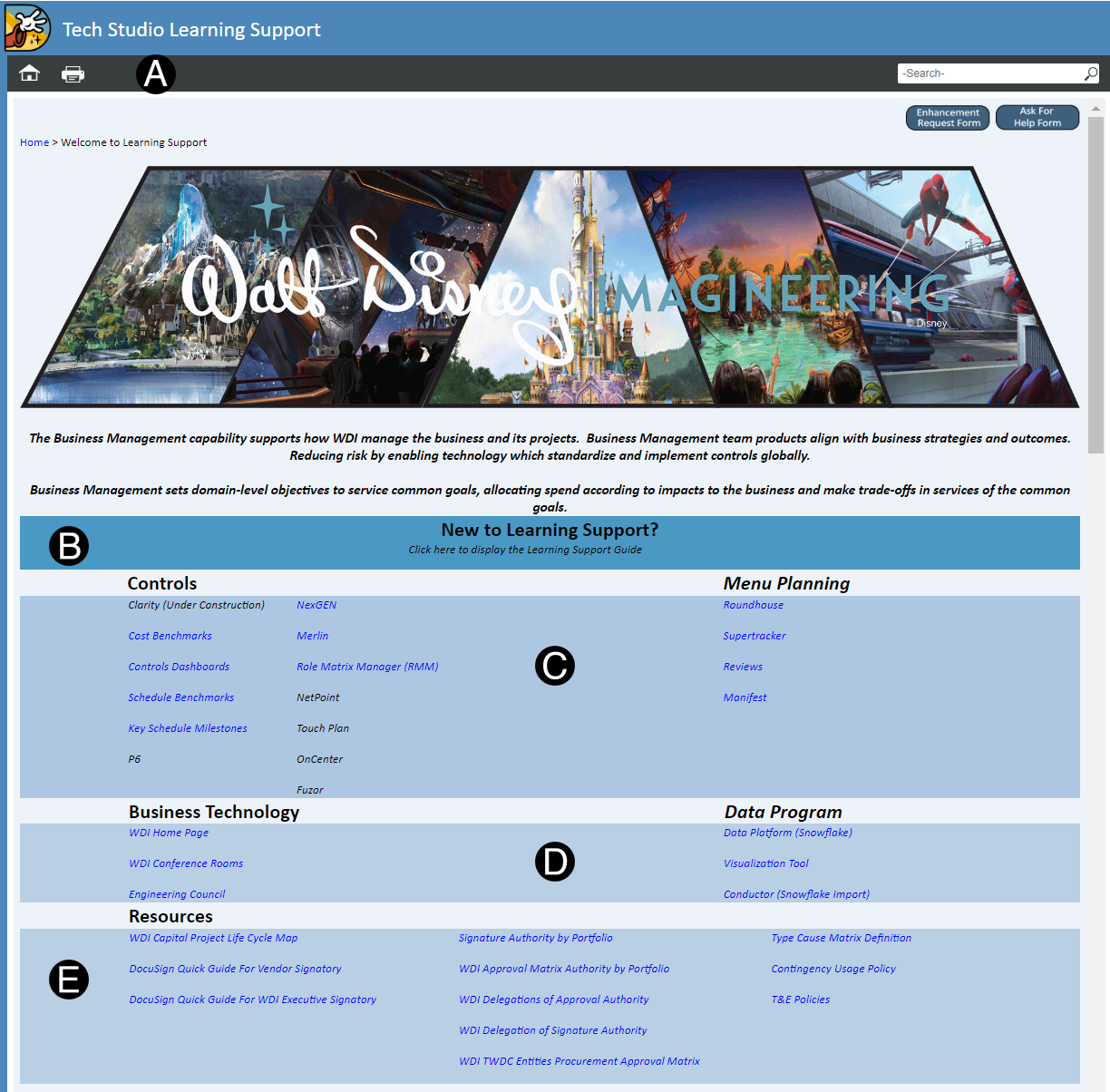
Use buttons in-page links to jump directly to sections like:
Welcome Page. |
|
Main tools page example. |
|
Process Maps within Step-by-Step pages. |
|
Within Learning Support the following Icons will assist you:
Tips that will highlight information |
|
Warnings of information that needs to be completed or addressed |
|
Targeted information for a location |
|
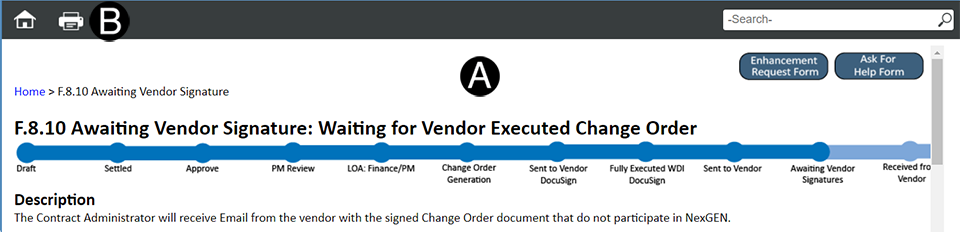
The Global Navigation Bar is designed with a user-friendly, browser-based configuration.
The Global Navigation Bar can be found in the upper part of the screen when viewing on a Desktop. The Global Navigation Bar may change locations and options when viewed on mobile or tablets. The Global Navigation Bar contains:
Search field
Home (Clicking on the Home icon will return you back to the Choose Your Location). To navigate back us the browser back buttons.

(For Display purpose we have one of the systems as an example but these components are universal)
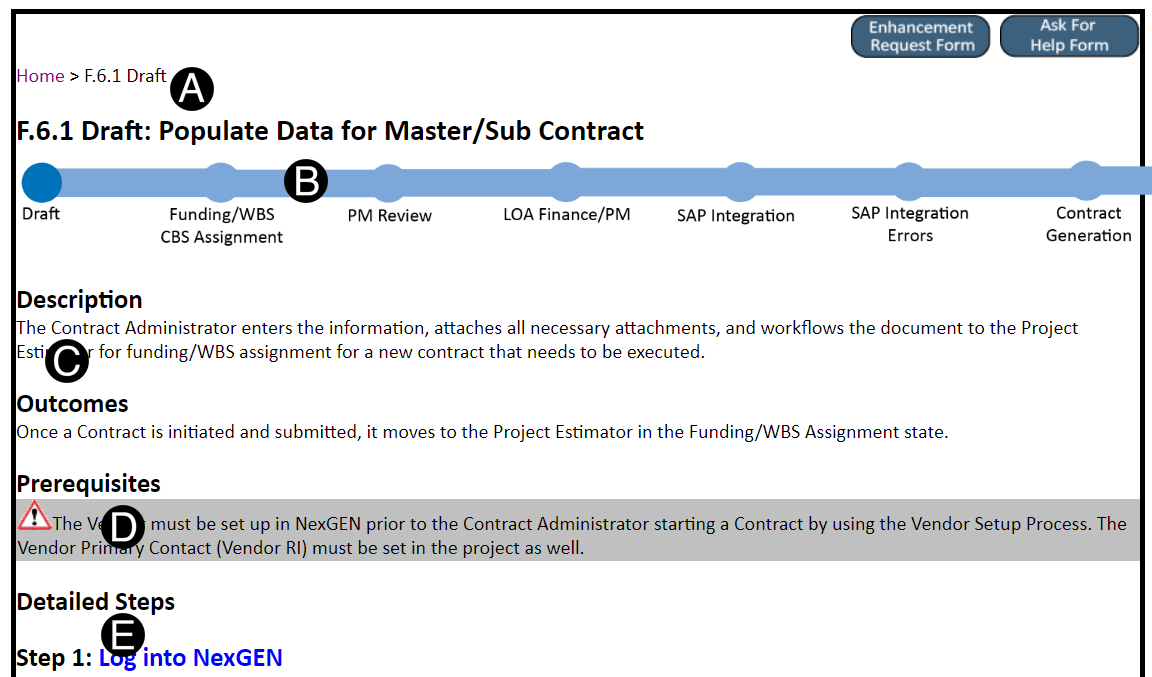
The Content Area of the Learning Support screen represents a task. Each content area consists of a number of components.
Each Task is identified along with the current state for the task. The location will also show for this step-by-step.
The Process Train is displayed showing the current task and previous stops. The Dark blue are completed stops and light blue are future stops for the task. You can click on The Process Train Stops to see other detailed steps.
Description and Outcomes give details of the current and next step for the tasks.
Tips and
Warnings are listed
and
Warnings are listed in grey details boxes that can
assist you in your completion of the tasks.
in grey details boxes that can
assist you in your completion of the tasks.
Detailed Steps: Shows detailed information about the selected task.
Best Practices when determining the word or phrase you want to search for:
Use the most descriptive word or phrase that identifies what your searching for. For example, use primary or supplemental stakeholder instead of stakeholder.
Enter an acronym if you are looking for its meaning. All acronyms are contained in the glossary and associated with their parent.
Locate the Global Navigation of the Learning Support window.


The Search Results displays in the Content Area:
 select the returned result that has your location in title.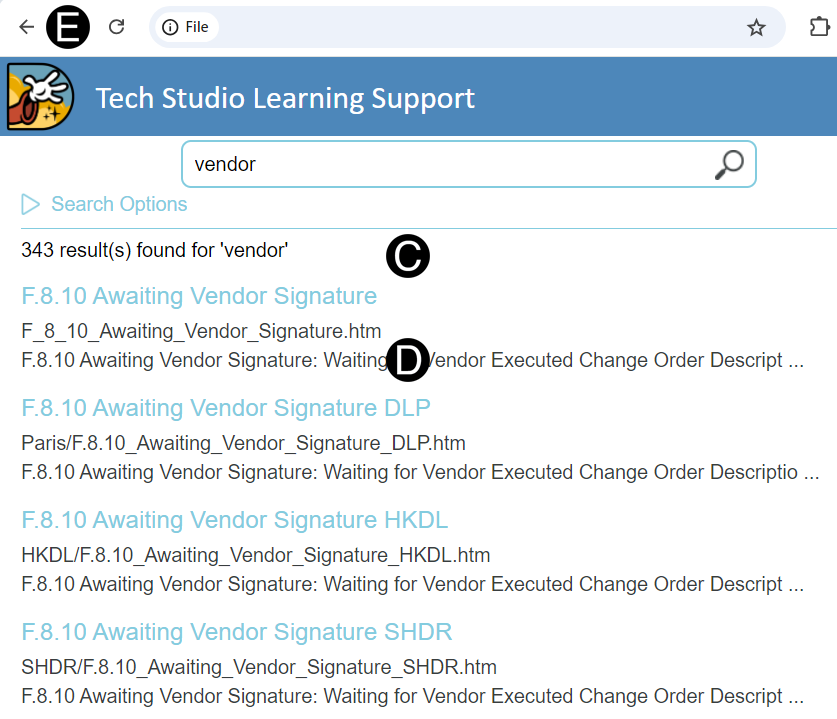
In rare instances, you may need to have a paper copy of a page in the Learning Support.
It is not recommended that you regularly print pages from the Learning Support since they are available to you at all times online. However, you can use the print feature when you find that you cannot complete your task or work efficiently without using it.
Printing a topic
 .
.
The Print dialog box is displayed:
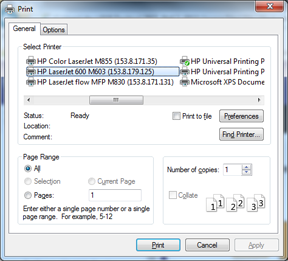
The Print dialog box that you see depends on what default printer you are using.
Identify the print settings and click Print.