


F.8.3 Approve: Change Order Type and Review for Accuracy Select CO Type and Populate Required Fields & Approve

Description

The Contract Administrator reviews the Change Order to confirm the settled value is accurate based on scope already awarded and determines if it is the Closeout Change Order.


Outcomes

Once a Change Order is submitted by the Contract Administrator it moves to the Project Manager in the PM Review state.

 

Detailed Steps


Step 1: Log in to NexGEN


Contract Administrator can edit Document Title, Purchase Group, Plant, Material Group, Delivery Address,  Responsible Individual/Studio and Scope within this state.


Step 2: Review any attachments included with the Change Order.

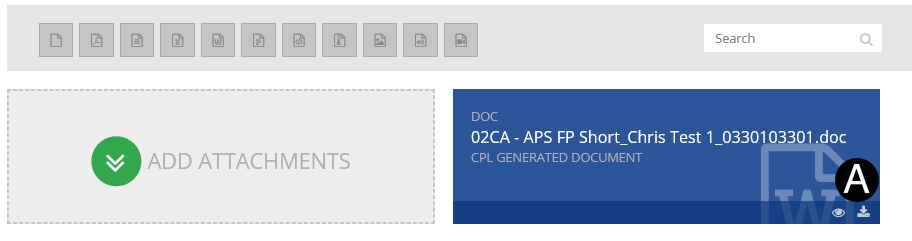
  1. In References and Attachments section Click download_icon.png download icon to view the Attached file.

You can Click Open or Save to review the attachments.


Step 3: Complete all required fields on the Change Order.


  1. Select/Verify Change Order Type from the list.
  2. Select Type of Request from the list.
  3. Select/Verify Scheduled Completion from the Date Picker.

If you have not yet completed your actions you can Save without submitting and complete at a later time.


If Contract Vendor is US Based, and the Contract type is either California or Florida DocuSign, will be part of the process.  Making the DocuSign Authority section a required step.


If No Signature Required is selected under Type of Request the document will bypass the DocuSign process in NexGEN. Non-DocuSign Documents will move to Fully Executed state when No Signature Required is selected..


Step 3b: Verify DocuSign Authority

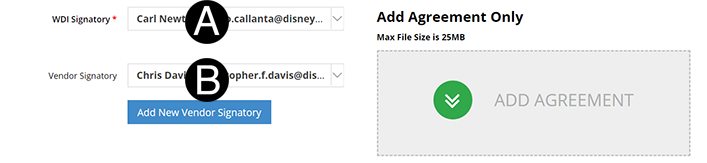
  1. Verify or update WDI Signatory.

  2. Verify or update Vendor Signatory.

A Vendor Signatory person can be added if not part of the drop-drown by clicking Add New Vendor Signatory and adding them in..


Step 4: Attach a document, sketch, or URL (if applicable).

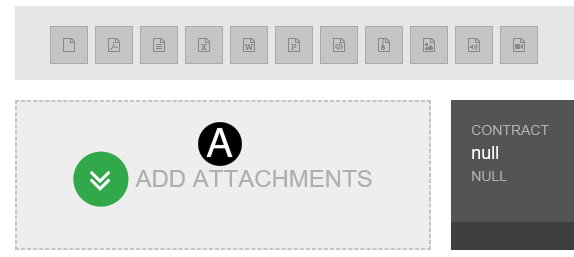
  1. Click ADD ATTACHMENTS.
  2. Select the file to attach (Holding down Ctrl to select multiple attachments).
  3. Click Open to attach the document.

The attachments will not be visible by default to the Vendor.  If they need to be, you will need to unlock the eye icon on the attachment. Visible to Vendor or Not Visible.


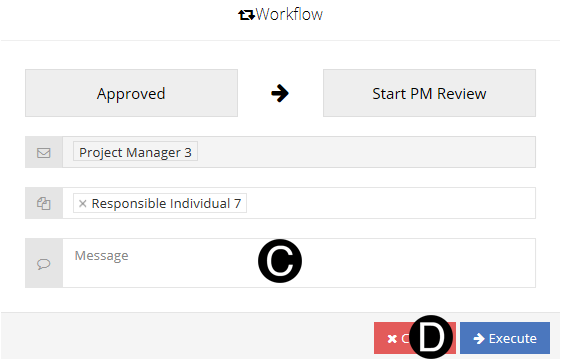
Step 5: If Contract Administrator wants to Approve the Change Order.

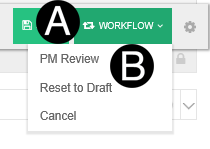
  1. Click Workflow.
  2. Select PM Review.


  1. Type a message in the Custom Message field to include in the Email notification (optional).
  2. Click Execute.

If Contract Administrator wants to reject the Change Order they would select the Reset to Draft Workflow option.