


F.8.2.1 Draft: Enter Unilateral Settled Values


Description

The Project Estimator creates the Lean Change Order without CD and adds attachment(s), as required.


Outcomes

Once a Lean Change Order without CD is initiated and submitted and is Workflowed to the Responsible Individual in the Settled state.


Detailed Steps


Step 1: Log in to NexGEN.

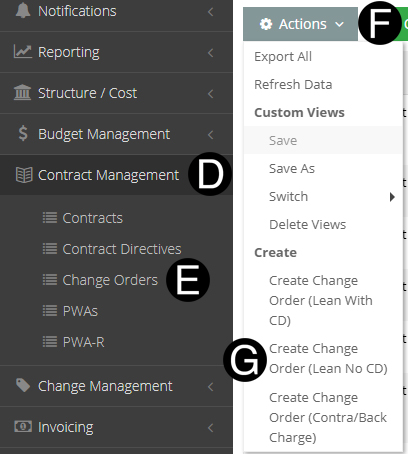
  1. Select Contract Management on Navigation Pane to expand.

  2. Click Change Orders.

  3. Click Actions drop down.

  4. Select Create Change Order (Lean No CD).
 

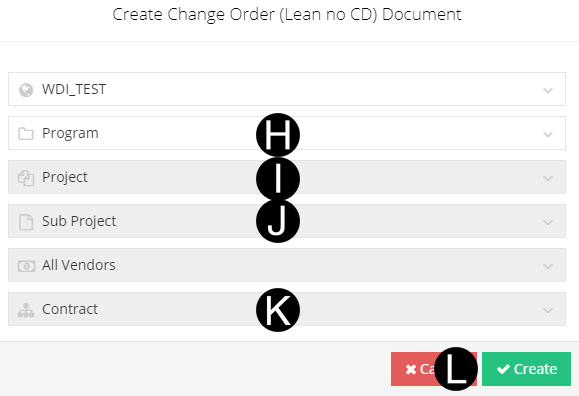
  1. Select correct Program from drop-down list.

  2. Select Project from drop-down list.

  3. Select Sub Project from drop-down list if applicable.

  4. Select Contract from drop-down list.

  5. Click Create.

Please note that this contract dialog box filters on existing Contract that are not in Closed Out state.

Please note that this dialog box filters Contracts in Contract Generation stage however Change Orders can not be Workflowed past Draft state.


Step 2: Complete all required fields on the Lean Change Order without CD.

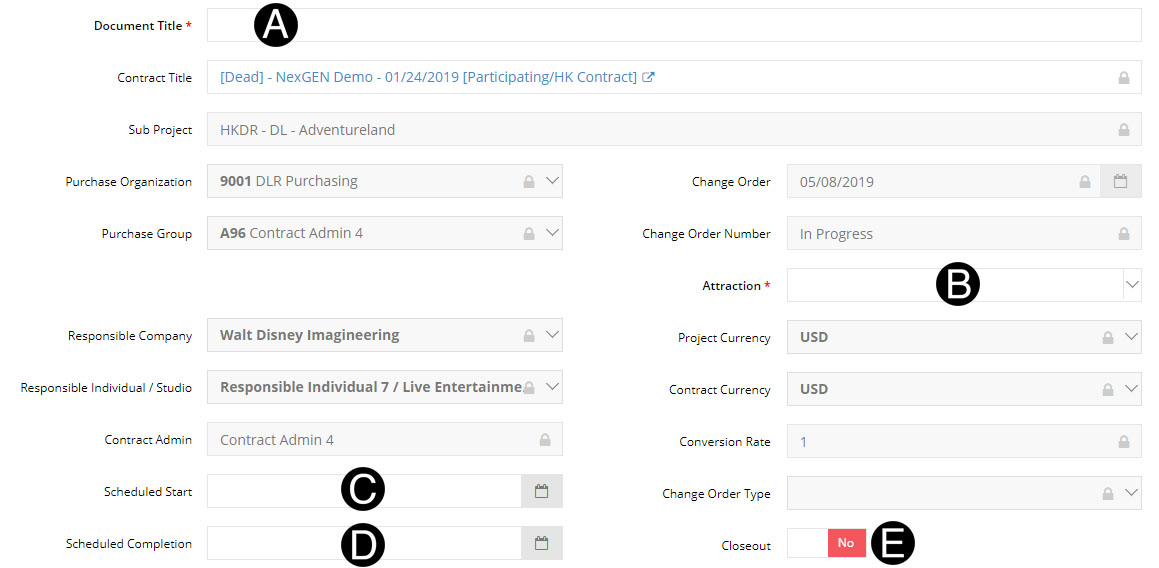
  1. Type Document Title in the field.

  2. Select Attraction from drop-down list.

  3. Select Scheduled Start from date picker.(Optional)

  4. Select Scheduled Completion from date picker.(Optional)

  5. Verify Close Out yes or no.

If Close Out is selected Yes it will cancel all pending JFC/CDs.

All Invoices and Contract balance must be $0.00 to Workflow Close Out.

If distribution list is used select correct attraction.


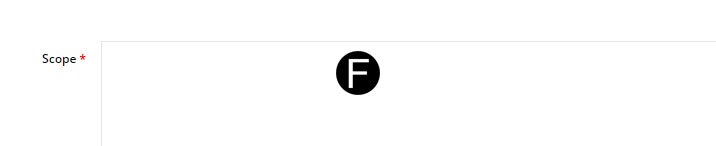
  1. Type Scope in the field.

The Change Order will not save if there are any errors, but will succeed after selecting OK if there are warnings.  

If you have not yet completed the Change Order, you can Save as draft without submitting and complete at a later time.


Sub Project SOV Details Header

Multiple Contingency Codes can be selected. If your project is using the subproject functionality you will be able to use contingency from the master project without have to do a budget transfer or supplemental estimate/budget approval.  

The Contingency Amount value is auto-populated based on the Assigned Budget minus the Contract Amount.

If same WBS is used in more than one row a SOV Code and SOV Description is required and must be unique. 

  • Milestone payment schedule number and description.

  • CSI Code and description.

  • Fee or Reimbursable.

If all budget is assigned the Cause of Change will default to planned work.

Only a WBS that has not been associated to a Contract or PWA will be available in the WBS Drop Down.  If a document is canceled the WBS will become available.


Step 3: Complete all required fields under Sub Project SOV Details.

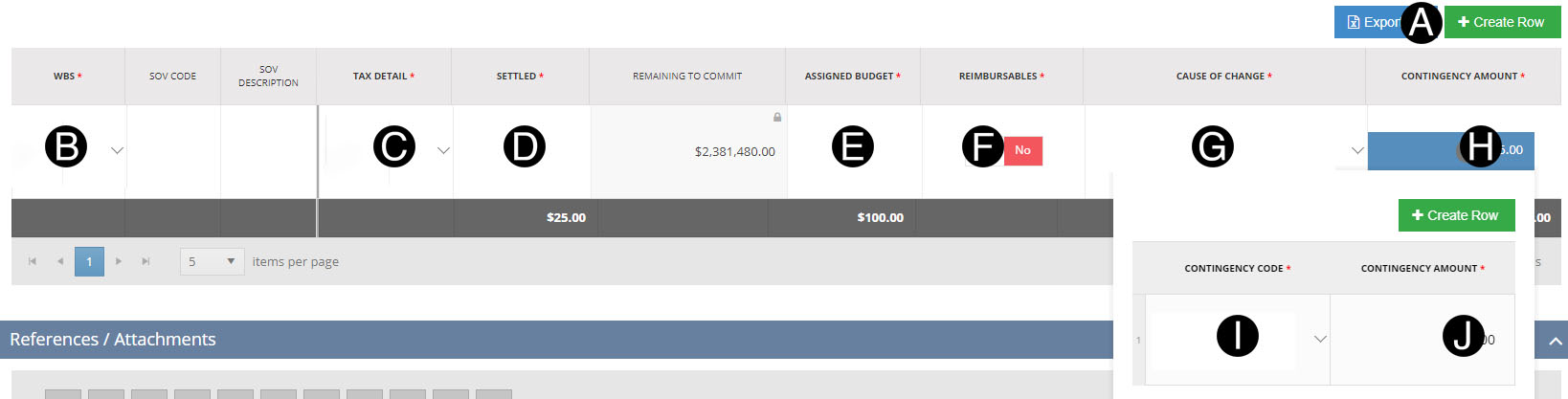
  1. Click Create Row Button. 

  2. Select the WBS from the list.

  3. Select Tax Detail from the list.

  4. Enter Settled in the field.

  5. Enter the Assigned Budget in the field.

  6.  Toggle Yes or NO if the amount is Reimbursables.

  7. Select the Cause of Change type from the list.

  8. Click Contingency Amount box to open pop up Window.

  9. Select Contingency Code from the list.

  10. Enter Contingency Amount.

If there are multiple Contingency Codes on the project Click + to add additional rows which allows contingency to allocate at a lower level.

To delete a row right click in any non-drop down box of an existing row and Click Delete Row from window.

If Contingency is assigned, the off-line Discretionary Approver an optional process must occur and the WDI Executive Approver, Date and Approval document attached.


Step 4: Save the Lean Change Order without CD.

  1. Click .


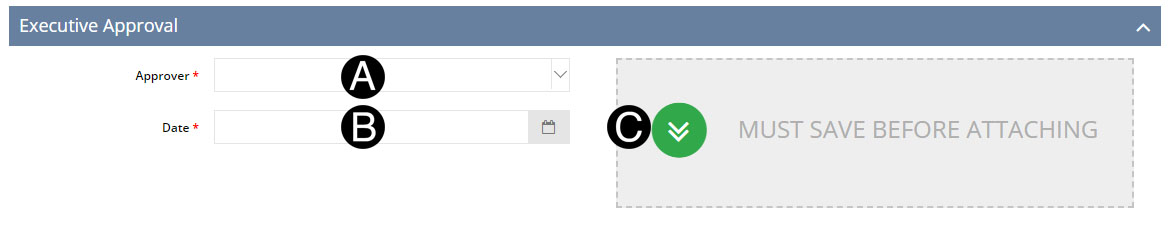
Step 5: Attach Executive Approval document.

  1. Select Approver from drop-down list.

  2. Select Date from date picker.

  3. Click Approval Attachment.

  4. Select the file to attach (Holding down Ctrl to select multiple attachments).

  5. Click Open to attach the document.


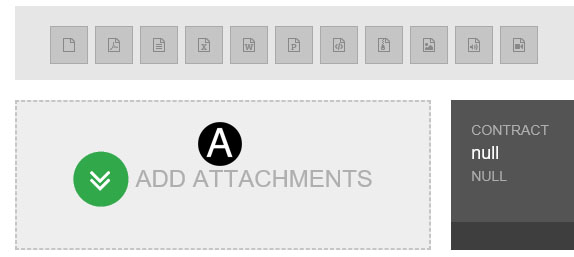
Step 6: Attach a document, sketch, or URL (if applicable).


  1. Click ADD ATTACHMENTS.
  2. Select the file to attach (Holding down Ctrl to select multiple attachments).
  3. Click Open to attach the document.
The attachments will not be visible by default to the Vendor.  If they need to be, you will need to unlock the eye icon on the attachment. Visible to Vendor or Not Visible.


Step 7: Submit the Lean Change Order without CD.

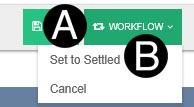
  1. Click Workflow.

  2. Select Set to Settled.


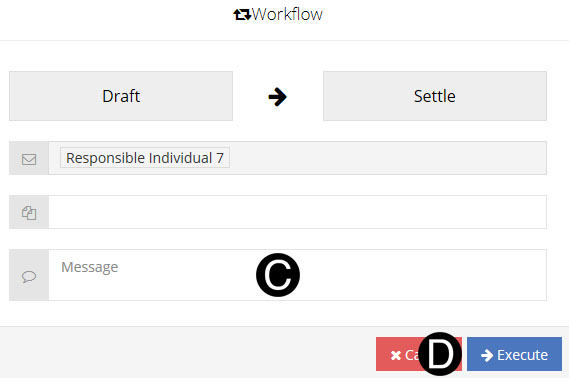
  1. Type a message in the Custom Message field to include in the Email notification (optional).
  2. Click Execute.