





The Vendor receives a notification via Email. The Vendor completes their Schedule of Values (SOV) and Workflows it to the Responsible Individual (RI).
Once a Change Order is submitted by the Vendor Workflows to the Responsible Individual in the Set to Pending SOV WDI state.
|


|
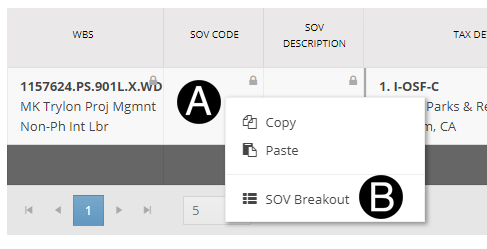
Right click SOV Code (optional).
Click SOV Breakout
Click Create Row button.
Enter unique SOV Code.
Enter unique SOV Description.
Update Settled Values for existing and added Rows.
Click Confirm.
|


Click 
|

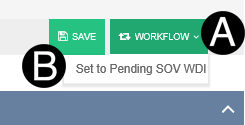
Click Workflow.
Select Set to Pending SOV WDI.
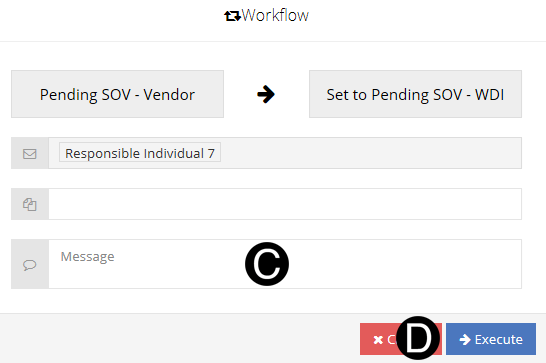
Type a message in the Message field to include in the Email notification (optional).
Click Execute.
 If
Fee and Reimbursable values do not tie to the original contract
value, you will receive an error.
If
Fee and Reimbursable values do not tie to the original contract
value, you will receive an error.