





The Vendor will receive the Contract via Email. The Vendor will then review the Contract from the DocuSign site and sign the Contract using DocuSign. By clicking Finish, DocuSign will then Workflow the Contract to WDI VP or Delegates for Signatures.
|
WDI VP (or delegates) will receive a copy of the signed Contract in NexGEN.

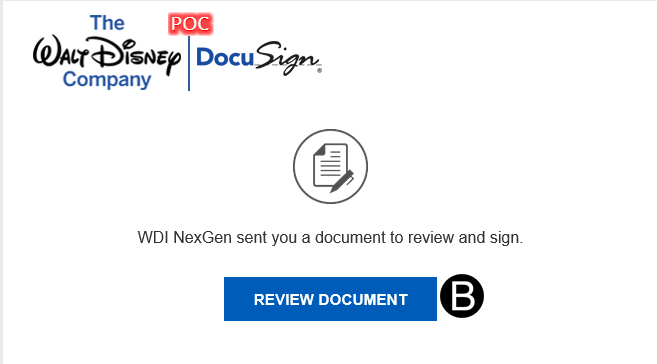
Click Continue to open and review the Contract.
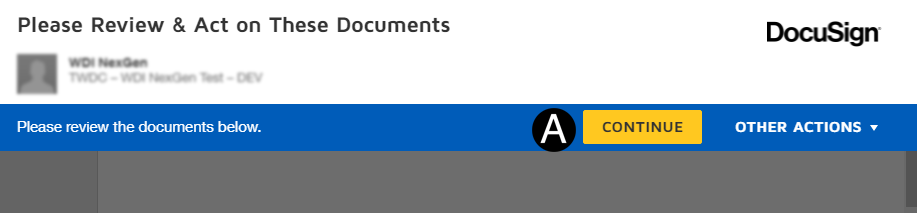
Review Contract file.
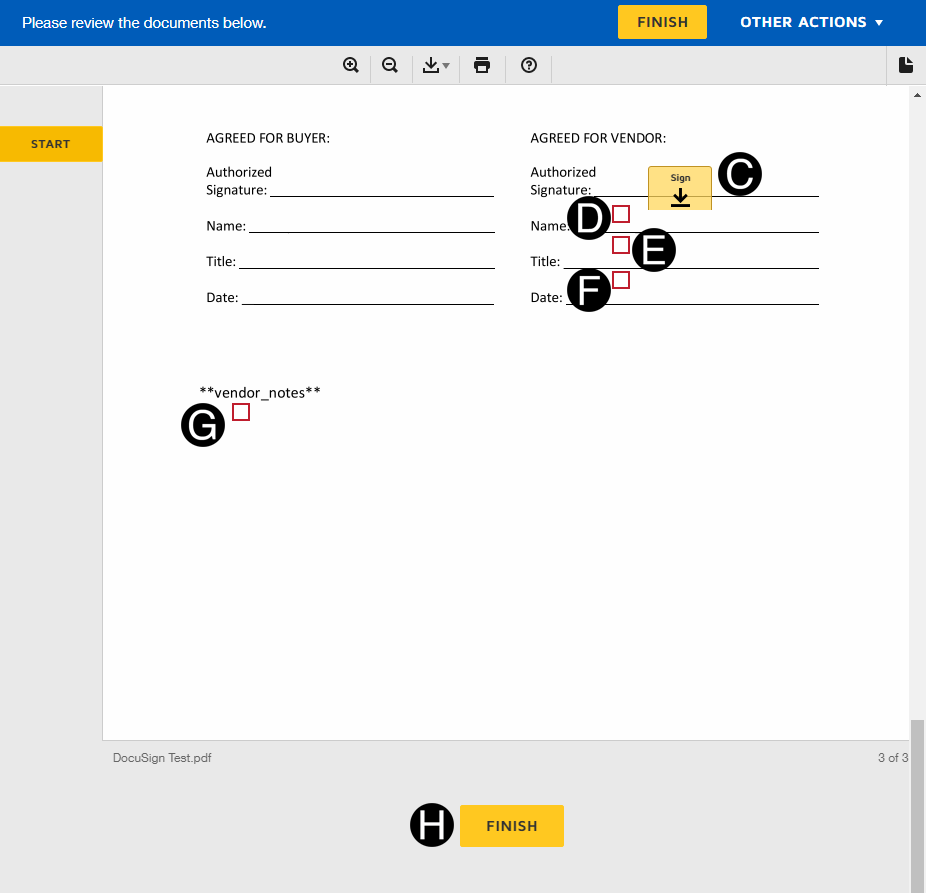
Sign using your stored DocuSign Signature on Authorized Signature line.
Enter Full Name by clicking in red box and typing information.
Enter Title by clicking in red box and typing information.
Enter Date by clicking in red box and typing information.
Enter Vendor Notes by clicking in red box and typing information
Click Finish.
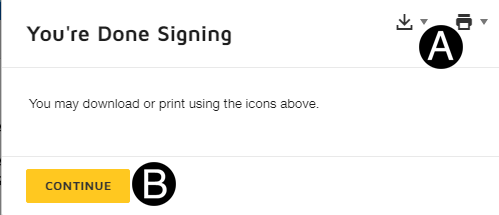
The contract can be download or printed by clicking the icons.
Click Continue to complete the DocuSign process.
 If
If