


F.6.7 Contract Generation: Edit Document and Attach Addt'l Backup and Make Necessary Documents Visible to the Vendor

Description

The Contract Administrator will workflow to the Vendor in the Sent to Vendor state if participating.  If the vendor is not participating, the Contract Administrator will workflow to Awaiting Vendor Signature state.

Please click here to see the DocuSign Tagging List.


Please change the font color to White for all DocuSign Tags in your document.


Formatting in the word/pdf doc. Be careful as too much formatting in the word/pdf can offset the placement of the tag once it routes as DocuSign envelope.


For **vendor_signature**  and **wdi_signature** give several spaces as the DocuSign e-signature takes up to 3 to 4 lines/rows.


Outcomes

The Vendor will receive a notification via Email and Execute the contract.

A draft contract will automatically be attached in this step.  If not using delete and attach a PDF version from your desktop, and select vendor visible .


The Contract Total should match the value on the executed paper contract.


The Contract Total and Subcontract Total field names are dynamic titles and will vary based on Tax Disposition selection.


Detailed Steps


Step 1: Log in to NexGEN


If Contract Vendor is in the Approved Countries for DocuSign, and the Contract type is either California or Florida DocuSign, will be part of the process.


Step 2: Download Contract.

  1. In References and Attachments section Click download_icon.png download icon to download the Contract file.
  2. Make any necessary modifications.
  3. Save Contract file as PDF.
  4. Click on Add Attachment.
  5. Browse for Contract file, Click Open to attach.
  6. Make Contract Visible to Vendor by Clicking Attachement_Visiable.png  
  7. Delete original Contract attachment by Clicking .


If your Vendor does not participate in DocuSign Authority Click Here for correct process steps.


Step 3: Verify DocuSign Authority

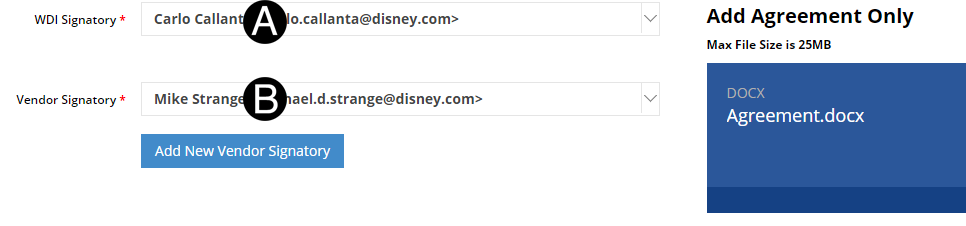
  1. Verify or update WDI Signatory.

  2. Verify or update Vendor Signatory.

A Vendor Signatory person can be added if not part of the drop-drown by clicking Add New Vendor Signatory and adding them in..


Step 4: Send to Vendor.

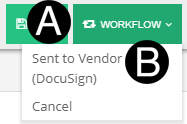
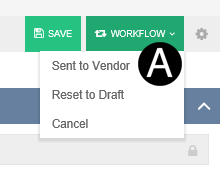
  1. Click Workflow.

  2. Select Sent to Vendor (DocuSign).


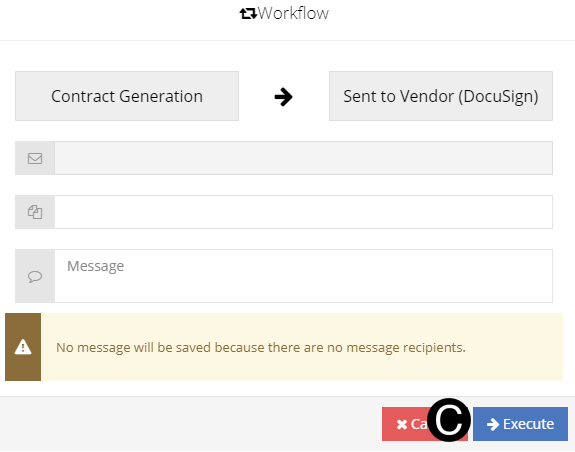
  1. Click Execute.


Step 3: Send to Vendor.

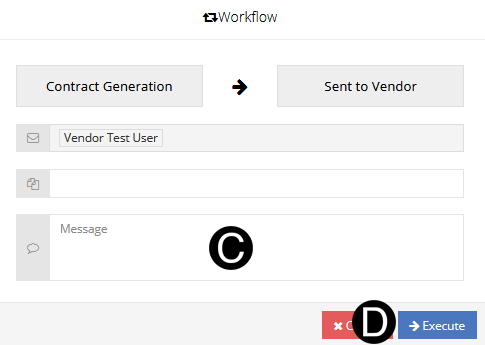
  1. Select Workflow: Sent to Vendor if vendor participates in NexGEN.

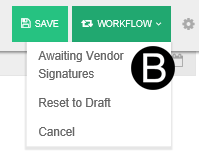
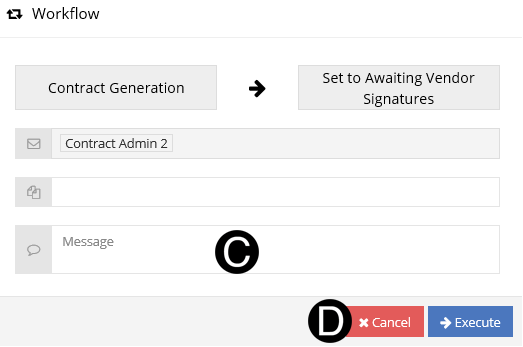
  2. Select Workflow: Awaiting Vendor Signatures if vendor does not participate in NexGEN.
 Or

  1. Type a message in the Message field to include in the Email notification (optional).

  2. Click Execute.


Screen Capture of Participating Vendor Workflow
 

Screen Capture of not Participating Vendor Workflow