





Invoices are entered based on the Schedule of Values. There are two roles that can enter an invoice:
Participating Vendor enters payment request based on Schedule of Values.
When not participating WDI Finance Accounting receives the invoice and enters on Vendor's behalf.
The invoice request is submitted to the Responsible Individual in the Pending state.
|
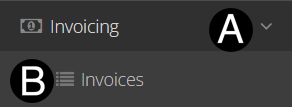
Expand Invoicing on left panel.
Select Invoices.
Expand filter options.
Verify Program and Project
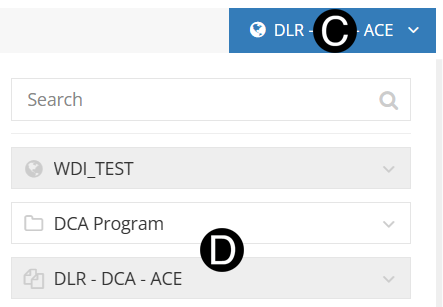
Click
 button.
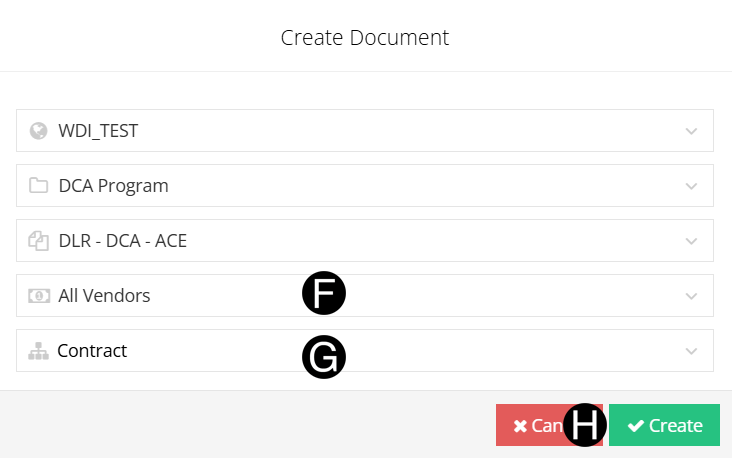
Select Vendor from drop-down.
Verify Contract.
Click Create button.

|

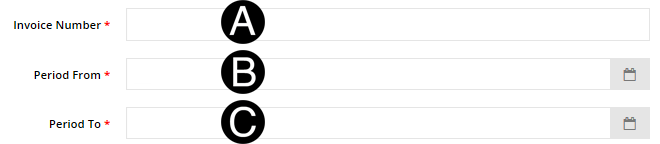
Type Invoice Number in the field.
Select Period From with date picker.
Select Period To with date picker.

Click Line Items with Remaining Balance to invoice

Enter values by SOV Code/Desc in Completed and Stored This Period field or as a negative value in the Retainage This Period field if requesting a release of retention.
|
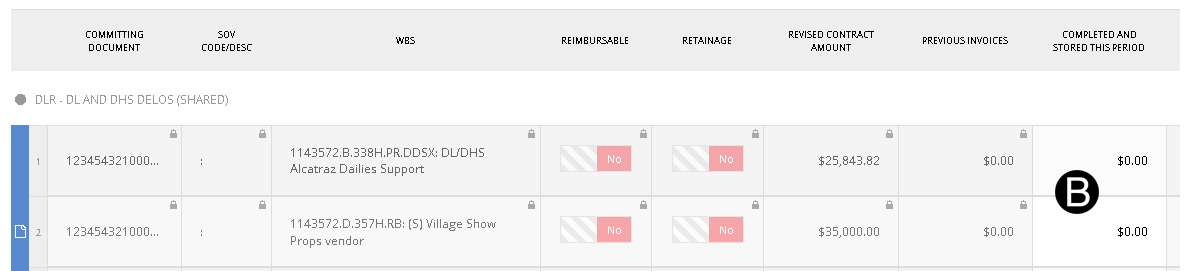

Click  .
.
|

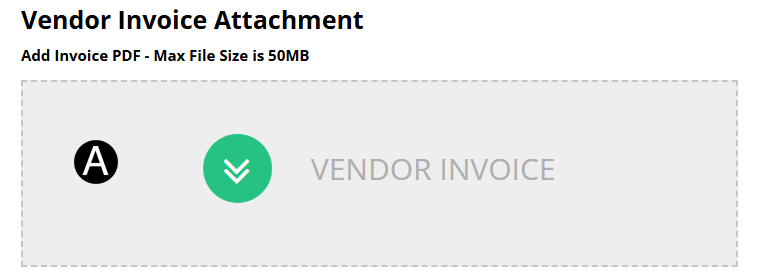
Click upload Vendor Invoice PDF.

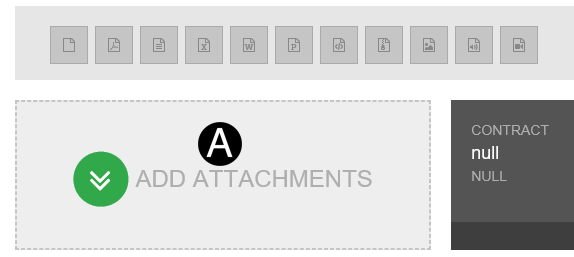
Click ADD ATTACHMENTS.
Select the file to attach (Holding down Ctrl to select multiple attachments).
Click Open to attach the document.

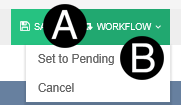
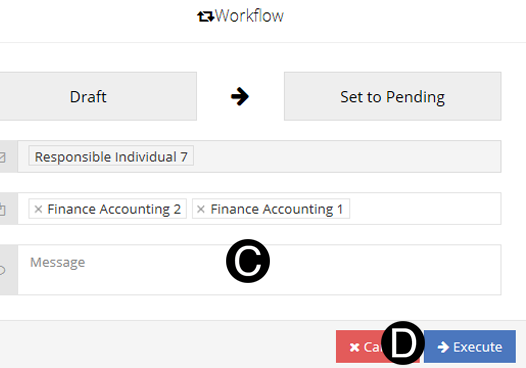
Click Workflow drop-down list.
Select Set to Pending.
Type a message in the Message field to include in the Email notification (optional).
Click Execute.

 There
can only be one Draft Invoice at a time. If an attempt is
made to create another Draft Invoice, an error message will occur.
To avoid this error workflow the current Draft Invoice.
There
can only be one Draft Invoice at a time. If an attempt is
made to create another Draft Invoice, an error message will occur.
To avoid this error workflow the current Draft Invoice.