




 Description
Design Services Producer will add or update the roles on the project.
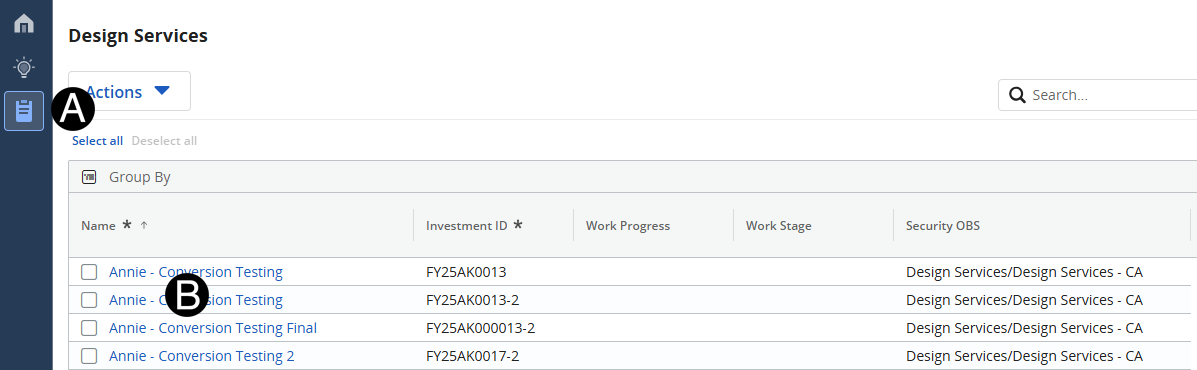
Click Design Services Icon.
Click Project that you want to add or update roles.
Select Staff Tab.
 You
can search for the role by name by using the search box in the drop-down list
list.
You
can search for the role by name by using the search box in the drop-down list
list.
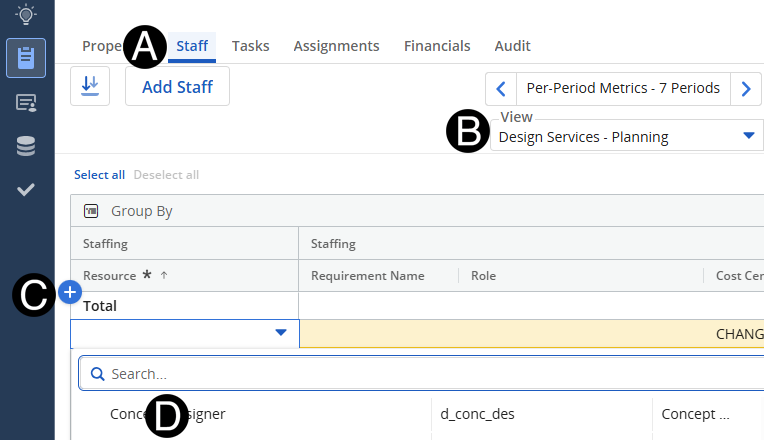
Select Cost Code.
Enter a Note (Optional).
Enter Forecast.
If
there is an impact to the scope or final cost. a Change
Order should be generated.

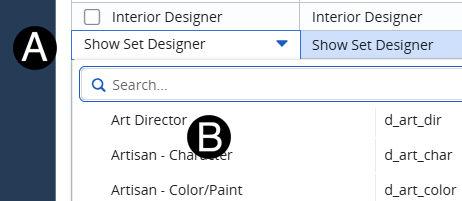
Select Resource you wish to update.
You
can search for the role by name by using the search box in the drop-down list
list.
Update
if needed Cost Center, Notes and Allocations. If changes to
scope or final cost a Change Order
should be generated.
