


D1.2: Enter Estimate Details

Description

The Idea Creator creates an idea in Clarity.


Detailed Steps


Step 1: Log in to Clarity.


Step 2: Select Idea.

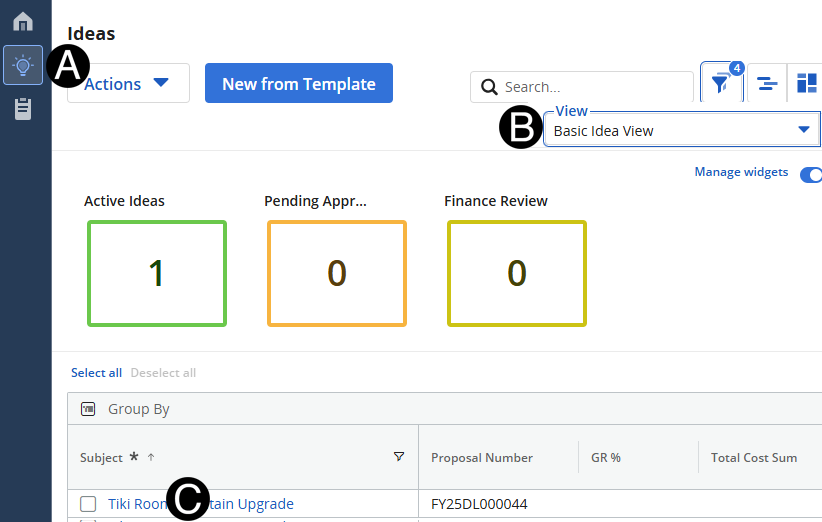
  1. Click Ideas Icon.

  2. Select Basic Idea View.

  3. Click Idea that you want to enter the estimate details for.
 

Step 3: Update GR%.

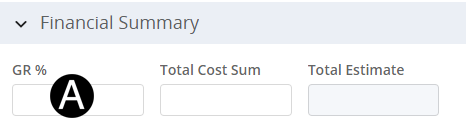
  1. Enter GR% for the Idea.


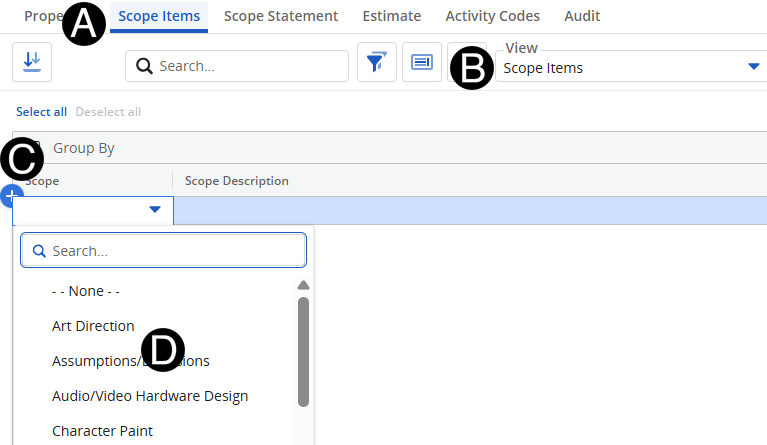
Step 4: Enter Scope Items.

  1. Click Scope Items tab.
  2. Select Scope Items View from drop-down list.
  3. Click the Add Row button.
  4. Select Scope Items from drop-down list. Repeat for each needed Scope Item.

You can search for Scope Items by typing in the search.


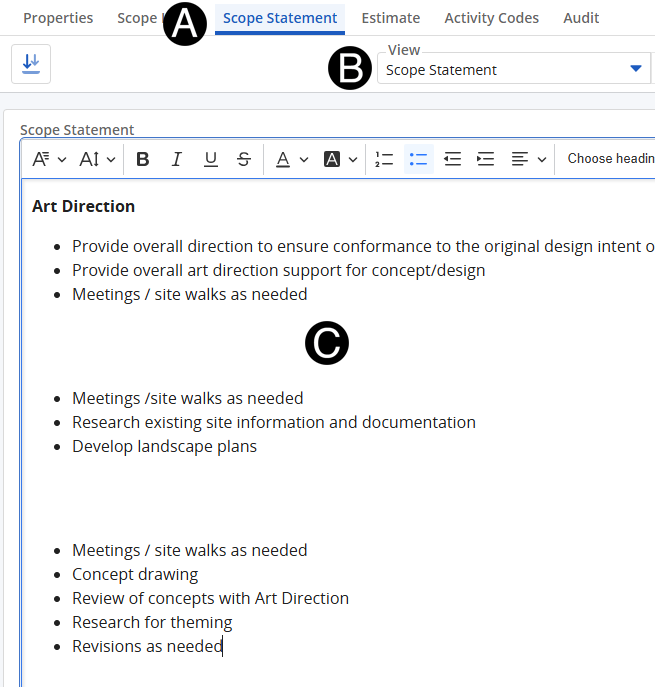
Step 5: Enter Scope Statement.

  1. Click Scope Statement tab.
  2. Select Scope Statement from the View drop-down list.
  3. Make any updates needed to the Scope Statement document.

This will comprise the body of the Email.


Step 6: Enter Estimate.

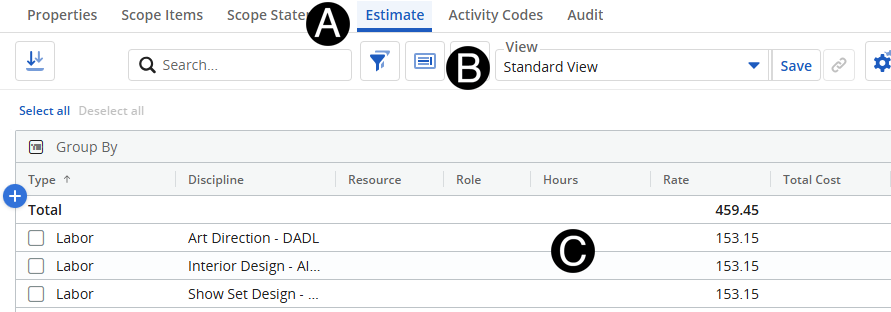
  1. Click Estimate tab.
  2. Select Standard View from drop-down list.
  3. Enter in the Hours for each Discipline.


Step 7: Verify GR% and Estimate Values.

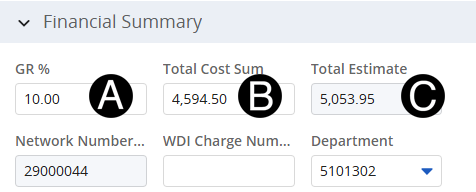
  1. Click Properties tab and confirm the GR%.
  2. Confirm Total Cost Sum.
  3. Confirm Total Estimate.

If the amounts need to be updated navigate to the Estimates Tab.