


Responsible Individual will update the Resource Allocations to the Allocations Tab. The Responsible Individual can also add any OE if needed to the Cost Plan.
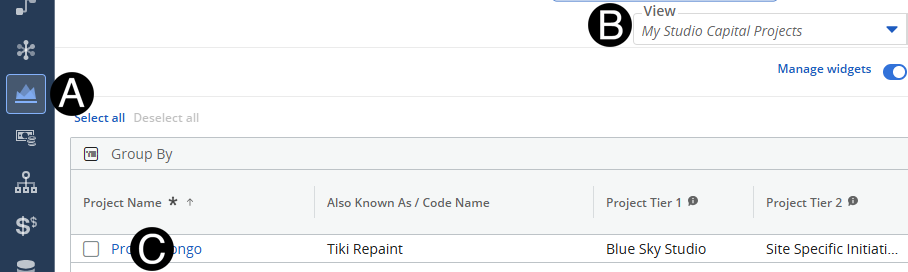
Click on Project icon.
Select My Studio Capital Projects view.
Click to open project from the list.
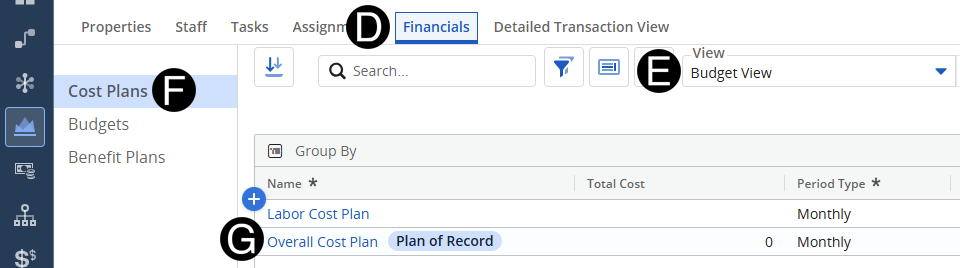
Select Budget View.
 Change
your Fiscal Period for easier navigation.
Change
your Fiscal Period for easier navigation.
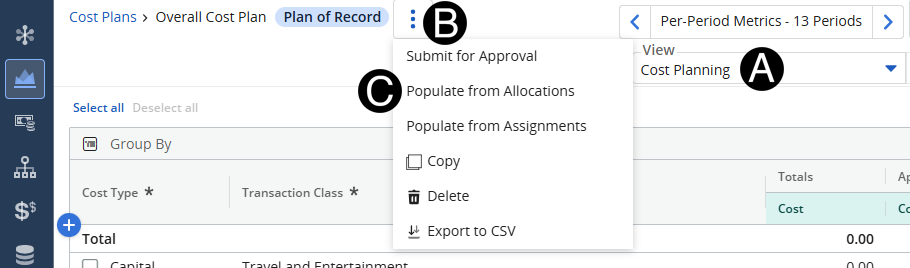
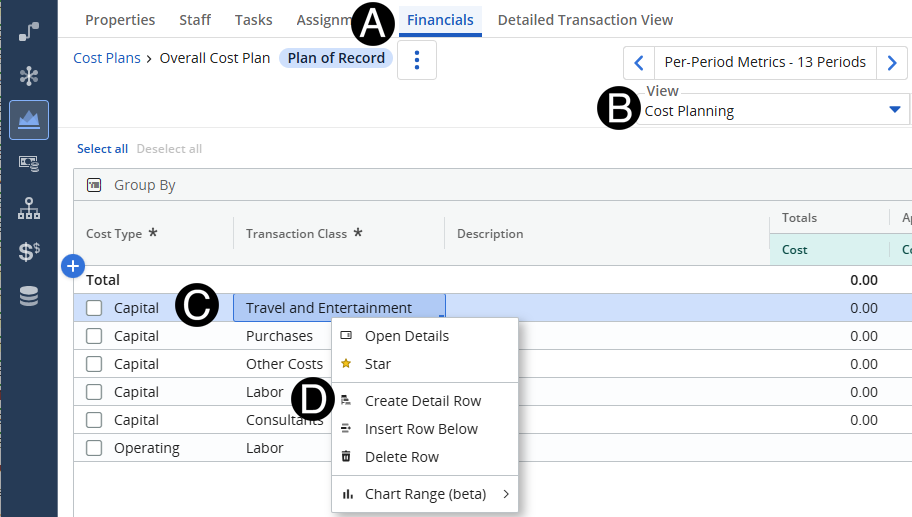
Change View to Cost Planing.
Click the three vertical dots.
Click Populate from Assignments.
Hover over the row with the expense type you want to add. Right Click.
Select Create Details Row.
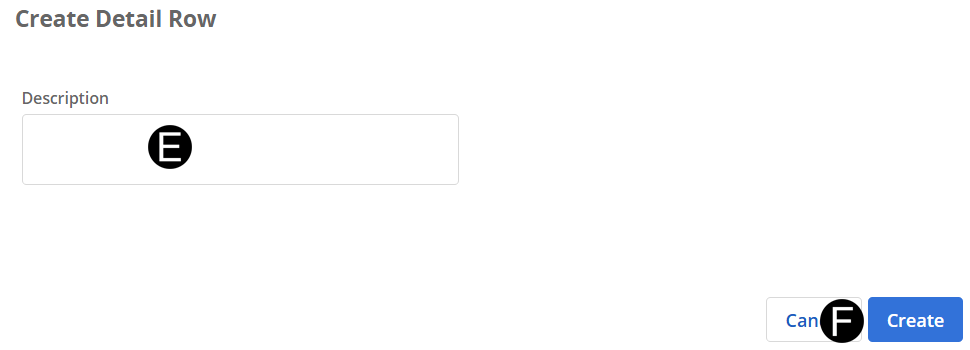
Enter a Description.
Click Create.
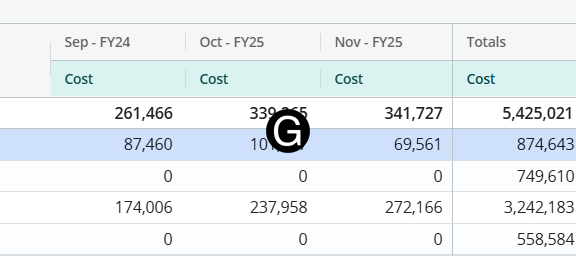
Enter Forecasts (Appropriate period).
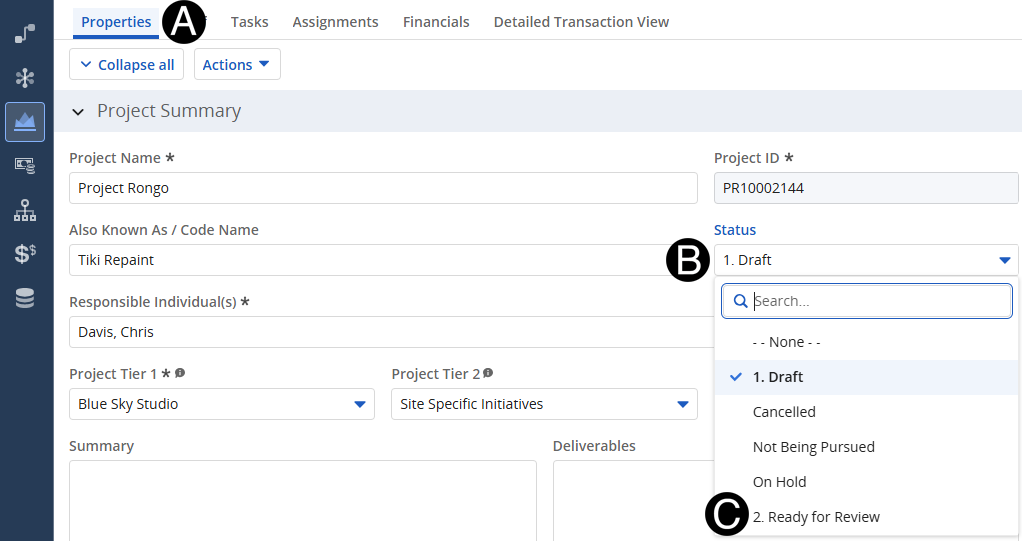
Click on Properties tab.
Click Status.
Select Ready for Review.