

Responsible Individual creates Project in Clarity using existing templates.
The Functional Manager can then add resources to the forecast as needed. Responsible Individual can enter Role Requests.
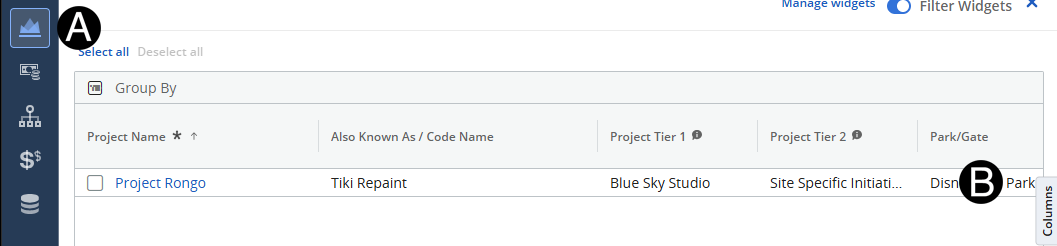
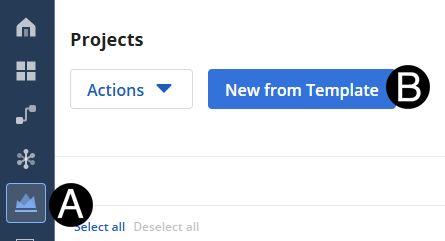
Click Projects Icon.
Select New From Template button.
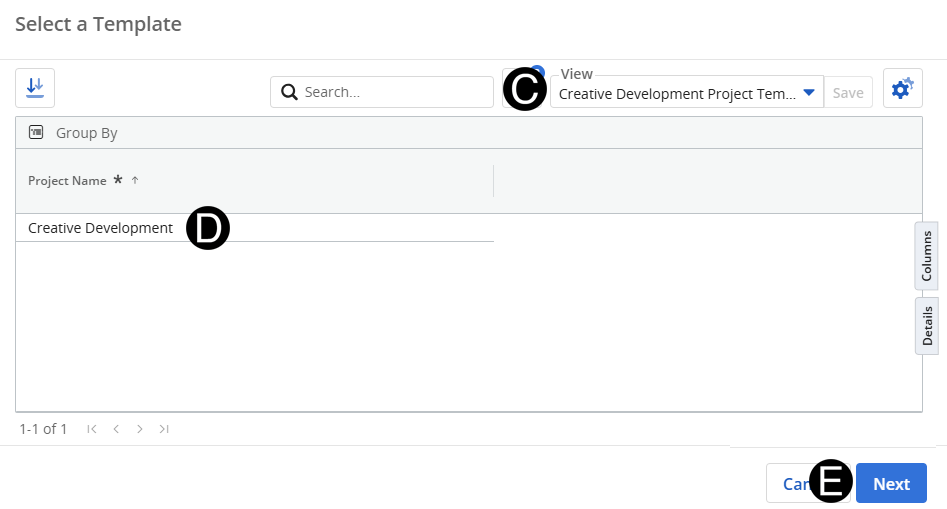
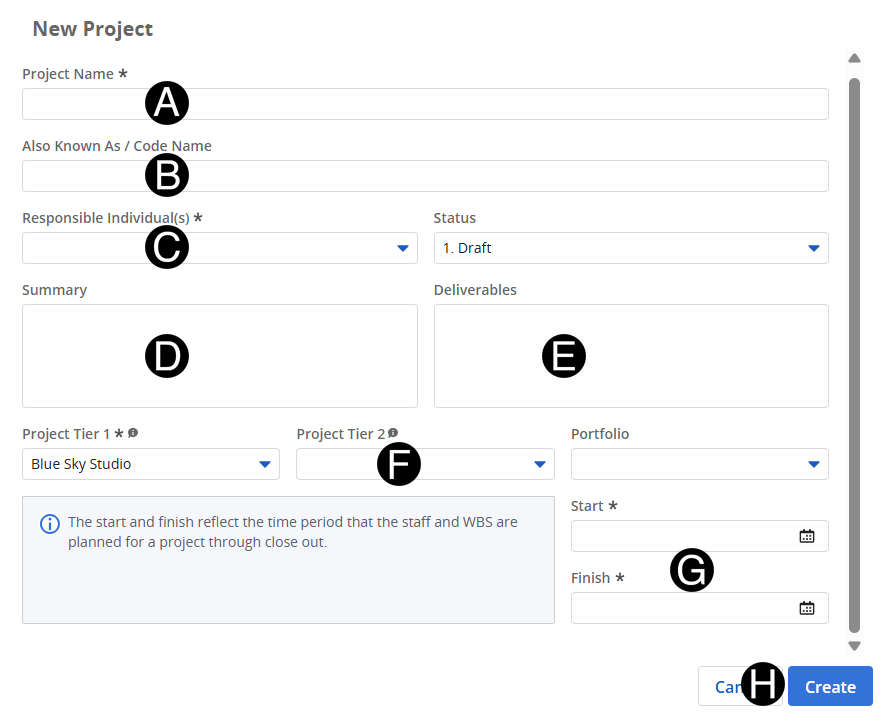
Enter Project Name.
Enter Also Known As/Code Name if exits.
Select Responsible Individual(s) from drop-down list.
Enter Summary of Project.
Enter Deliverables of Project.
 Responsible
Individual, Summary and Deliverables can be added/updated once project
is created.
Responsible
Individual, Summary and Deliverables can be added/updated once project
is created.
Select Project Tier 1 from drop-down list.
Select a Start date and Finish date from date picker.
Click Create.
 Verify
Project Tier 1 is correct is matching your group if it is not
cancel and go back and select the correct Template..
Verify
Project Tier 1 is correct is matching your group if it is not
cancel and go back and select the correct Template..
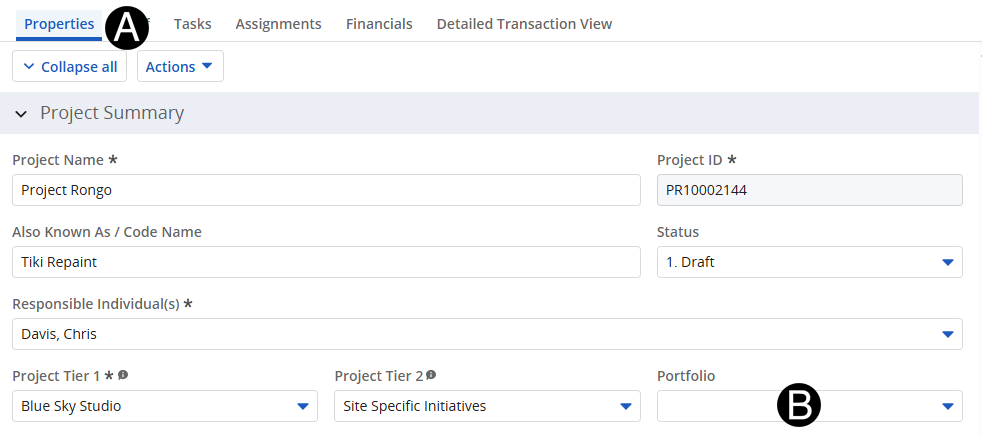
Select Properties tab.
Select Portfolio from drop-down list.
Click Projects icon.
Select Park/Gate from drop-down list.