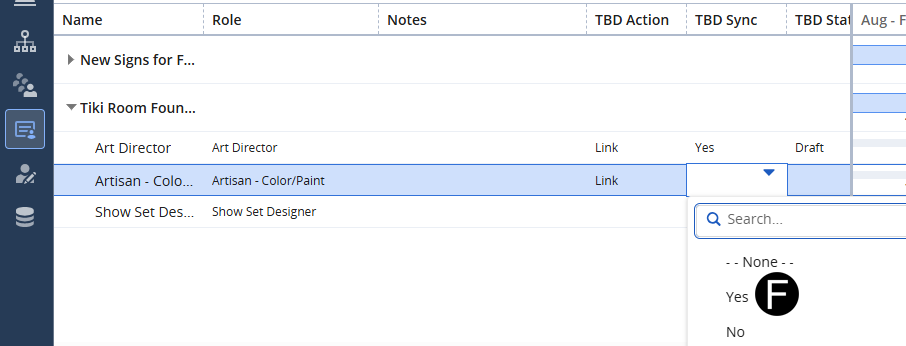



Functional Manager will link TBD role on Role Request.
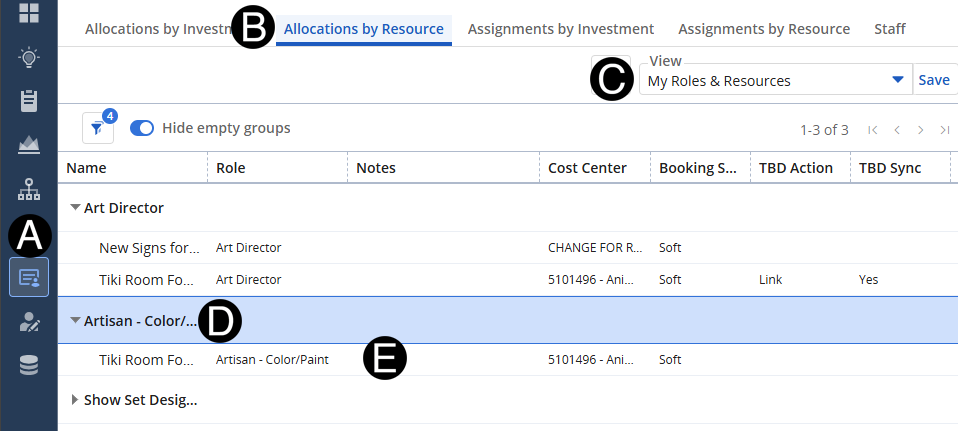
Click Staffing Icon.
Click Allocations by Resource tab.
Select My Roles & Resources view.
Expand the Project that you want to add TBD to role request.
Identify the TBD for Role Request.
 You
can also do this task by using the Allocations
by Investment click
here for those steps.
You
can also do this task by using the Allocations
by Investment click
here for those steps.
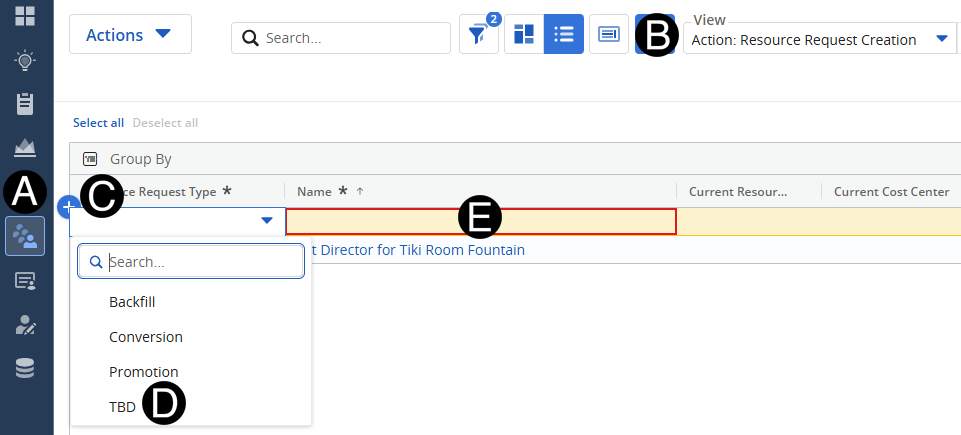
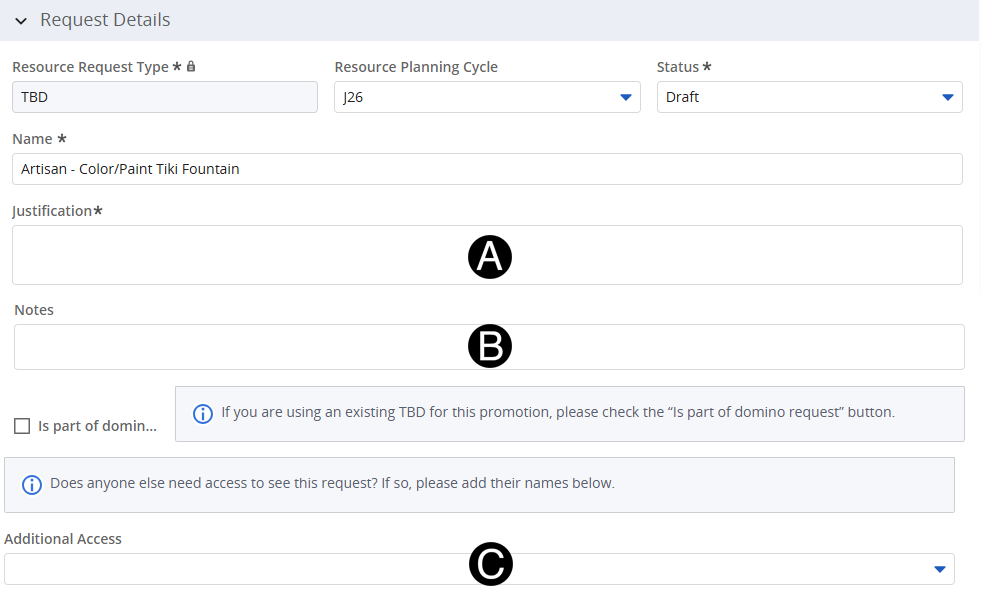
Select Resource Request icon.
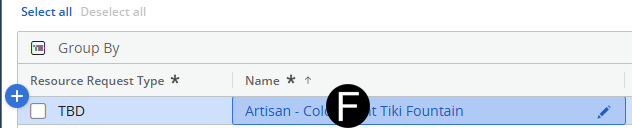
Click Name link to add details.
Enter Justification.
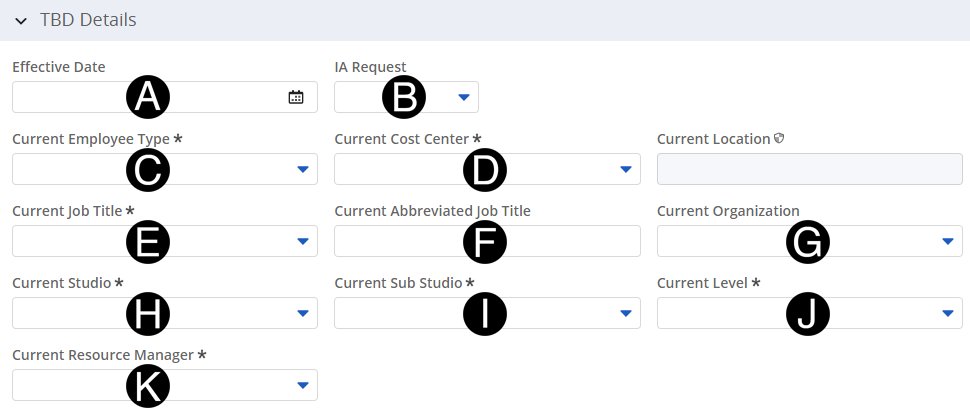
Select Effective Date from date picker.
Select Current Cost Center from drop-down list.
Select Current Job Title from drop-down list.
Enter Current Abbreviated Job Title.
Select Current Organization from drop-down list.
Select Current Studio from drop-down list.
Select Current Sub Studio from drop-down list.
Select Current Level from drop-down list.
Select Current Resource Manager from drop-down list.
Select Project from drop-down list.

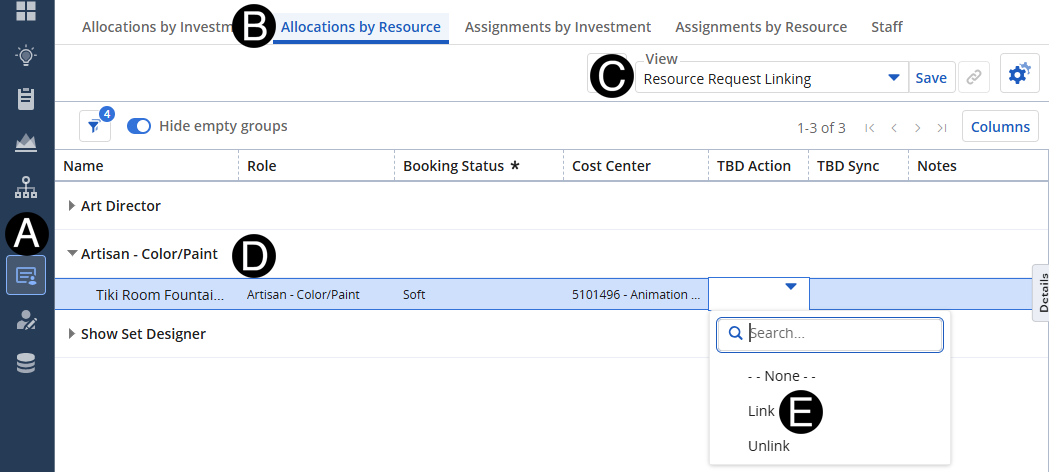
Select Staffing icon.
Click Allocations by Resource tab.
Add
TBD Action and TBD
Sync Columns if not part of the Resource
Request Linking view.
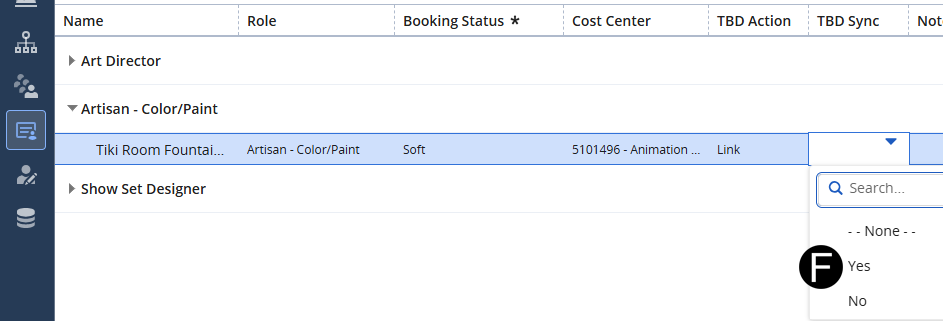
Select Yes from TBD Sync drop-down list list.
Design Services Producer will add a TBD role on the project.
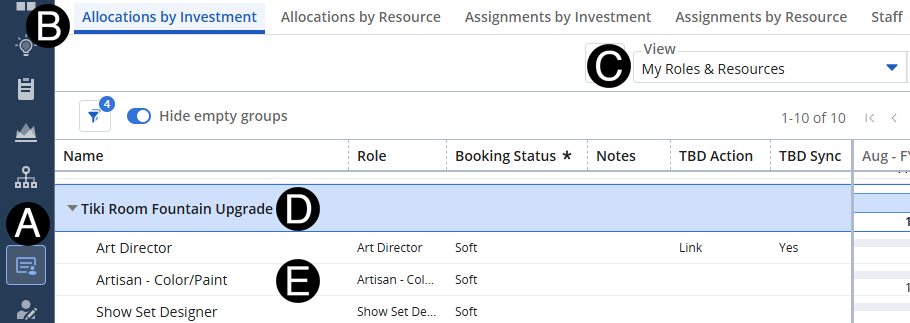
Click Staffing Icon.
Click Allocations by Investment tab.
Select My Roles & Resources view.
Expand the Project that you want to add TBD to role request.
Identify the TBD for Role Request.
You
can also do this task by using the Allocations
by Resource click here for those
steps..
Select Resource Request icon.
Click Name link to add details.
Enter Justification.
Select Effective Date from date picker.
Select Current Cost Center from drop-down list.
Select Current Job Title from drop-down list.
Enter Current Abbreviated Job Title.
Select Current Organization from drop-down list.
Select Current Studio from drop-down list.
Select Current Sub Studio from drop-down list.
Select Current Level from drop-down list.
Select Current Resource Manager from drop-down list.
Select Project from drop-down list.
Select Staffing icon.
Click Allocations by Resource tab.
Add
TBD Action and TBD
Sync Columns if not part of the Resource
Request Linking view.
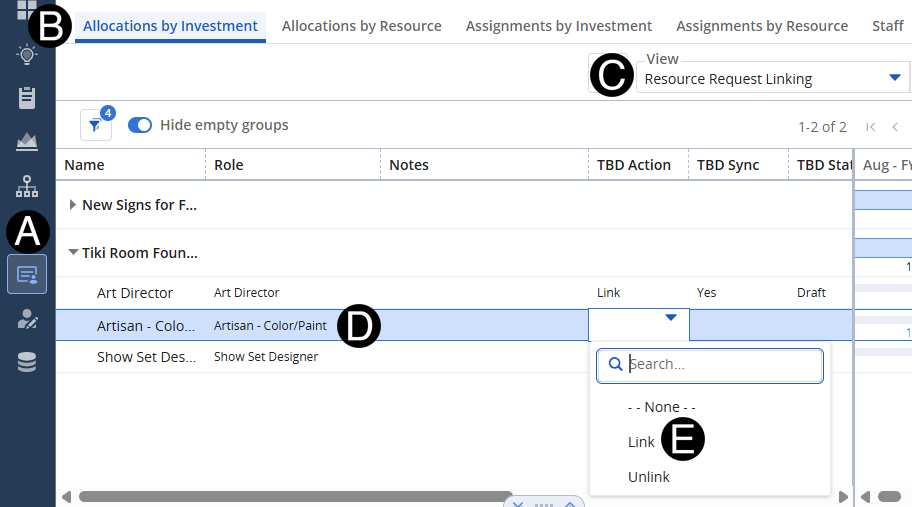
Select Yes from TBD Sync drop-down list list.